How to Download Offline Maps Before a Road Trip—and Check They’re Ready
Save map areas that cover your full drive, test them without a connection, and plan for navigation features that may not work offline.
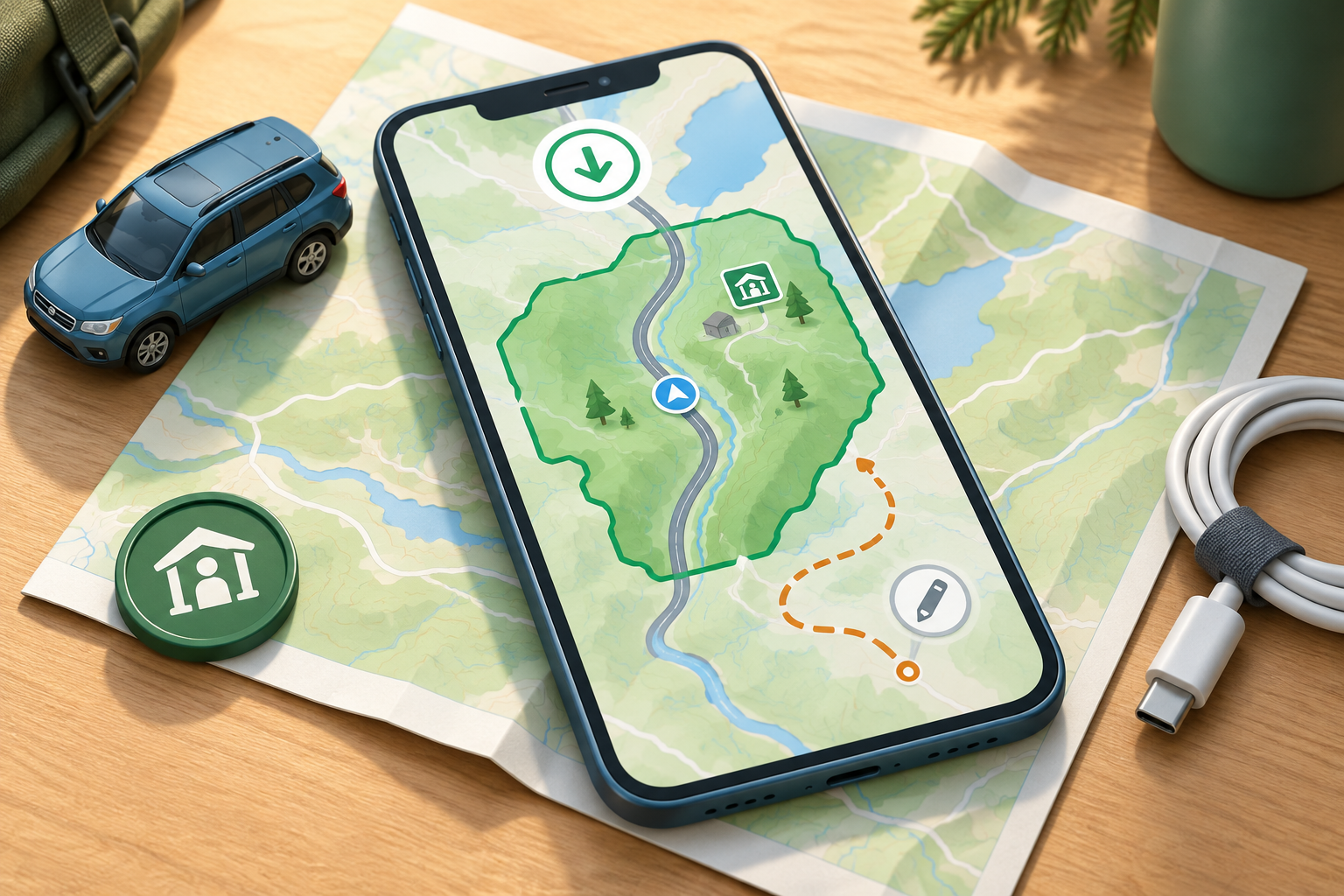
Plan offline map coverage for the full drive
A saved map is useful only if it includes the places you expect to navigate between.
To download offline maps before a road trip, first identify the complete route you may need—not just the destination. Include your starting point, overnight stops, planned attractions, and plausible detours. Then save map coverage for the roads connecting those places and test that you can open it without an internet connection.
Google Maps saves a selected map area, so check its boundaries against your itinerary. If the trip crosses a large region, you may need more than one saved area. Make sure there are no uncovered stretches around route changes, border crossings, or stops away from the main highway. Google Maps’ offline driving directions work only when the entire route is within downloaded coverage.
Plan for the return drive as well. If you might take another highway because of weather or a closure, include that corridor where practical. A saved map is a reference, not confirmation that every road is open or that conditions remain unchanged.
- Mark the full drive and overnight stops.
- Include likely detours and nearby places you may visit.
- Review the saved boundaries for gaps along the route.
Download the map area in Google Maps
Save the map before travel, while you have a reliable connection and time to correct a coverage problem.
Google Maps offers offline map downloads on Android and iPhone or iPad. Menu names and placement can vary by device, app version, and settings, but the download is managed from the app’s Offline Maps area.
Open Google Maps, tap your profile menu, and choose Offline Maps. Select the option to choose your own map, adjust the displayed area so it covers the roads and places you need, and tap Download. Let the download finish before closing the app. If your trip requires separate areas, repeat the process and check that the saved coverage joins up where your route passes between them.
A larger selection uses more device storage, so check available space and choose an area that fits your trip rather than a much wider region than you need. Google says downloaded maps need updating before they expire. Its help instructions say an automatic update may be attempted when a map is nearing expiration and the device is connected to Wi-Fi; check the map status yourself rather than relying on an automatic update at the last minute.
- Connect to Wi-Fi and check available storage.
- Open Offline Maps and select a custom map area.
- Adjust the area to cover the route, download it, and repeat for other areas if needed.
- Check for maps that need updating before departure.
Add park-specific information for national park visits
A general road map and a park’s own information can help with different parts of a visit.
Cell service can vary within a national park. The National Park Service cautions that coverage maps are general guides, not a guarantee of service at a particular location. Prepare information before entering an area where you expect reception to be limited.
The NPS app offers park maps and downloadable park content for offline use. Find the park in the app while you are connected and download the material it provides for your visit. Check what is actually available for that park; do not assume the saved content includes every current road condition, closure, trail update, or alert.
You can use Google Maps for the broader drive and the NPS app for park-specific information. Before setting out, check official park updates and follow posted signs or instructions from park staff if they differ from information saved on your phone.
- Find the relevant park in the NPS app before arrival.
- Download available park content while connected.
- Check current park updates separately from saved maps.
Test your downloads before leaving
A quick offline check can reveal an incomplete download or a route that extends beyond the saved area.
Test at home, at your hotel, or somewhere else with reliable service—not after you have already lost reception. Open the Offline Maps list in Google Maps and confirm that the areas you need appear there. Check that the displayed boundaries cover the planned drive and that the app does not indicate a map needs updating.
Next, temporarily turn off mobile data and Wi-Fi, or use airplane mode and make sure Wi-Fi remains off. Open the saved map and pan around the route. Check that you can see the roads and places you expect to use. If practical, preview a short driving route that stays within the saved coverage. This confirms that you can access the map offline; it cannot confirm that every road detail is current.
If the map is missing, incomplete, or difficult to access, reconnect and finish the download or adjust its boundaries. Restore your usual connectivity settings after testing. Do the same kind of access check for park content downloaded in the NPS app.
- Confirm the required map areas appear in Offline Maps.
- Turn off Wi-Fi and mobile data temporarily.
- Open the map and check the roads and places you plan to use.
- Fix gaps or incomplete downloads while you still have a connection.
- Restore your usual connection settings.
Know what offline navigation cannot do
Offline maps can provide a useful reference, but they do not replace connected updates or every type of direction.
Google Maps can provide offline driving directions only when the whole route is inside the downloaded coverage. Do not assume it will guide you through an uncovered stretch if your route extends beyond the saved area.
Google Maps offline mode does not provide live traffic information or alternate routes. Transit, walking, and cycling directions are also unavailable offline. A saved map may not reflect a closure or other change that occurred after it was downloaded.
Before departure, check official road, weather, and park information while you have a connection. During the trip, follow posted signs and current instructions from authorized officials. If you need to review a route change, stop somewhere safe first rather than handling your phone while driving.
Choose a backup that suits your route
A second reference can be useful when phone access is unreliable, but it also has limits.
For a road trip through areas with patchy service, you might prepare a paper road map or an official park map as a backup to your phone. A paper map remains available without a charged device or network connection, but it may not show recent changes. Check it against current official information before setting out.
The right combination depends on your itinerary. A drive through well-serviced towns may need only a tested offline map, while a remote route or park visit may call for park-specific downloads and a paper reference. Keep your phone charged and agree with travel companions on key stops and a simple fallback plan before entering an area with uncertain reception.
Use the comparison below to decide what to prepare. None of these options guarantees that every road detail or condition will be current. Before departure, finish by checking official updates for the roads and parks on your itinerary and confirming that your saved maps open offline.
| Option | Useful for | Limit to keep in mind |
|---|---|---|
| Google Maps offline area | Driving directions within downloaded coverage | The full route must fit within that coverage; no live traffic or alternate routes |
| NPS app downloads | Available park maps and park-specific content offline | Content varies; check current official updates separately |
| Paper road or park map | A non-digital reference when a phone is unavailable | May not reflect recent road or park changes |
Frequently asked questions
Can Google Maps give driving directions without cell service?
Yes, if the entire route is within downloaded map coverage. Offline driving directions do not include live traffic or alternate routes.
How can I tell whether my Google Maps download worked?
Check that the area appears in the app’s Offline Maps list, then open it with Wi-Fi and mobile data turned off. Confirm the saved coverage includes the roads you plan to use.
Should I download a separate map for a national park?
Consider downloading the relevant park content in the NPS app while connected. The app offers park maps and offline content, but saved material is not a substitute for checking current park information.
Will offline maps show road closures or current weather?
Do not rely on them for real-time changes. Check official road, weather, and park updates before departure, and follow signs and current instructions during your trip.
Sources & further reading
Explore the original sources behind this article. Our editorial perspective is separate from the organizations we reference.