How to Set a Holiday Out-of-Office Reply Without Oversharing
Set a holiday auto-reply with clear dates, a useful contact or next step, and only the details senders need. Here’s how to prepare it in Gmail or Outlook and check who will receive it.
What a holiday out-of-office reply should do
A useful automatic reply manages expectations rather than explaining your holiday plans.
To set a holiday out-of-office reply, choose the dates you will be away, write a short message explaining that you may not respond, and give senders a practical next step. If your email service supports it, use a more informative message for colleagues and a more limited one for external senders. Before switching it on, arrange any urgent handoff directly.
The goal is to answer three questions: Are you available? When might the sender hear from you? What should they do if they cannot wait? You generally do not need to say where you are going, why you are away, or who is traveling with you.
For example, “I’m away from email and may be slow to respond. For urgent assistance, contact the support team at [team inbox]. Otherwise, I’ll reply when I’m back.” Replace the bracketed text with a contact or channel that is approved for the people receiving the message.
Choose what internal and external senders need to know
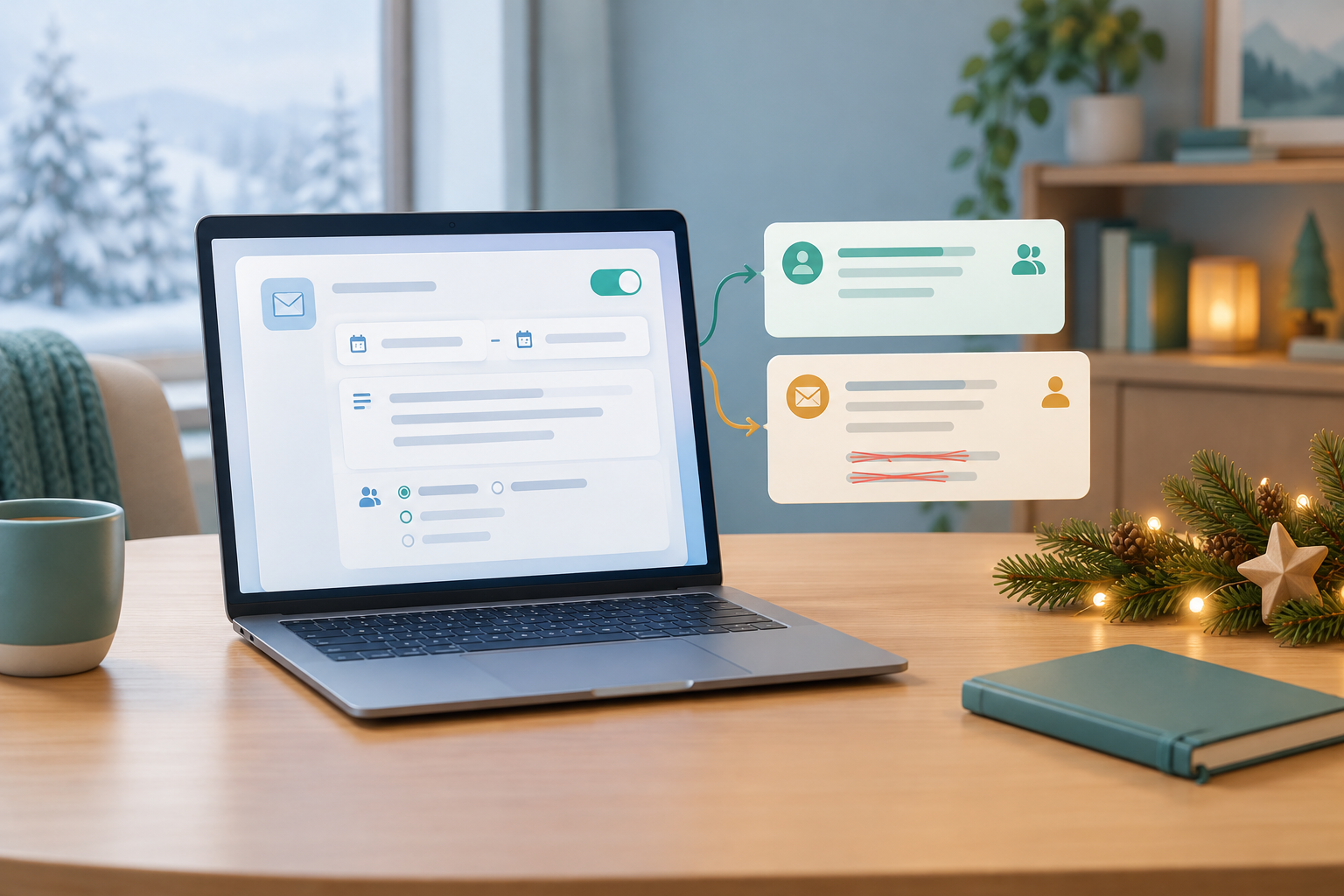
Different audiences may need different routes for getting help, but every version should disclose only what is useful.
A colleague may need to know who is covering a task or where to find a shared resource. A customer or unfamiliar sender usually needs only a general response expectation and an appropriate public contact route. Where your account supports separate messages, keep the internal version operational and the external version brief.
Avoid including a destination, detailed leave schedule, personal phone number, or confidential project information in a reply that could reach people outside your organization. A team inbox, public support channel, or general department contact is often a more suitable alternative, provided the organization authorizes its use.
An automatic reply is not a privacy guarantee. Treat the message as information that could be forwarded or received by an unintended sender. NHS England Digital recommends sharing only necessary absence details, using separate internal and external replies where possible, and arranging time-sensitive handoffs directly. The advice is a cautious practice, not proof that any particular message is secure.
- Internal: identify a colleague, team inbox, or documented process for urgent work.
- External: state that you are away and direct urgent requests to an appropriate general contact.
- Both: avoid unnecessary personal, travel, or sensitive work details.
| Message type | Useful information | Usually unnecessary |
|---|---|---|
| Internal | Absence dates or expected response timing; approved cover contact; relevant shared-work location | Personal itinerary; unrelated private details |
| External | That you are unavailable; a reasonable response expectation; a suitable public or team contact for urgent matters | Personal phone number; travel destination; confidential project details |
| One message for everyone | A neutral availability statement and a contact suitable for all recipients | An internal-only name, private number, or restricted process |
Arrange the handoff before you turn on the responder
A general message cannot transfer ownership of a task or make a colleague available to take it.
Contact the person or team handling work while you are away. For each time-sensitive item, clarify what needs attention, who owns it, where the relevant information is stored, and how a decision should be escalated. Share only the context that person needs and follow your organization’s rules for confidential material.
For instance, if a client may need a decision during your absence, tell the designated colleague directly and confirm that they have access to the relevant records. Then make the auto-reply point to the approved contact route. Do not assume that a sender will read the reply promptly, or that the named person has agreed to cover.
If you are a freelancer or small-business owner without a backup, say what you can realistically do: for example, that you will respond after returning. Do not promise a particular turnaround unless you can meet it. The auto-reply sets expectations; it does not provide monitoring or emergency coverage.
Set up a holiday reply in Gmail
Gmail’s vacation responder includes a date range, subject, and message; check the available recipient controls in your account.
In Gmail on a computer, open Settings and choose See all settings. In the General tab, find Vacation responder, turn it on, and enter the first and last day, subject, and message. Save your changes. The current controls and labels may differ in the Gmail app or another interface, so follow the options shown in the account you use.
Gmail provides an option to limit replies to people in your contacts. Consider whether that matches your purpose: restricting replies may mean some legitimate senders do not receive a notice. Gmail also generally sends the reply only the first time someone messages you, with exceptions such as another message after four days or an edited reply. It is not necessarily a fresh notification for every email.
If you use a work or school account, your organization may manage or limit settings. Check its policy or ask your administrator if the option is missing or you are unsure which senders will receive the response.
- Open Gmail Settings and select See all settings.
- In General, locate Vacation responder and turn it on.
- Set the start and end dates, subject, and message; review the contacts-only option if available.
- Save the changes, then confirm the responder is active and the dates are correct.
Set up automatic replies in Outlook
Outlook setup varies by account type and app, so verify both the available schedule and audience controls in your version.
In supported Outlook accounts, automatic replies can be scheduled for a date range and given a message. Outlook for the web, desktop apps, and different account types may present different menus or options. Open the settings for your current app and account, find Automatic replies or Out of Office, and use the schedule and message controls shown there.
For some work or school accounts, Outlook supports separate messages for people inside and outside the organization. Use the internal message for an approved cover contact or team process, and keep the external message short. If the separate-message option is absent, do not assume it is available through another route; your account type or workplace configuration may not support it.
Microsoft warns that external automatic replies may reach newsletters, advertisements, and junk mail. Its guidance includes limiting replies to contacts when appropriate. Consider this tradeoff alongside the needs of legitimate external senders, and follow your organization’s policy. Check the current interface because labels and capabilities can change with account and app setup.
- Open the automatic-replies or out-of-office settings for the Outlook app and account you use.
- If available, schedule a start and end time that match your absence.
- Draft internal and external messages separately if your work or school account offers that option.
- Review any contacts-only or external-sender controls, then save and confirm the active status.
Use a concise template and make it accurate
A good template is specific about availability and next steps, not about personal plans.
Start with a plain statement, then add only the information that changes what the recipient should do. If you know your return date and are comfortable sharing it, include it. If your schedule may change, say you will respond after you return rather than giving a date you cannot stand behind.
Use the contact details only if they are approved and monitored. A mailbox that nobody checks can create a worse expectation than no handoff at all. If there is no urgent alternative, do not invent one; simply state that you will respond when available.
- External: “Thanks for your message. I’m away from email and expect to respond after [date]. For urgent assistance, contact [approved team inbox or support channel].”
- Internal: “I’m out of office through [date]. For [type of urgent request], contact [covering colleague or team] via [approved channel]. Background materials are in [shared location], if you have access.”
- No designated backup: “I’m away from email and will respond when I return. I’m unable to monitor messages during this period.”
Check the setup before you leave
A short final review catches mismatched dates, unintended recipients, and handoffs that do not work.
Check the message in the account you actually use, especially if you set it up on a phone or manage more than one mailbox. Confirm the start and end date, time zone if shown, subject, spelling, links or contact details, and whether the intended recipients will receive it. Interface options vary, so verify the active status rather than relying on memory.
If practical, ask a trusted colleague to check that the internal route makes sense, or send a test from an appropriate account without disclosing sensitive information. Confirm that any named cover person has agreed and can access the materials. Note how to turn off or update the responder if your return date changes.
After the holiday, disable or revise the reply if it has not ended automatically, and check for messages that need attention. Your next useful step is to set the dates, choose the audience, and finish the handoff before your final workday—not to add more personal detail to the message.
- Check the start and end dates and confirm the responder is enabled.
- Read each message version as a recipient would; remove details they do not need.
- Verify the contact route and confirm the handoff directly with the person or team.
- Plan how you will update or turn off the reply if your availability changes.
Frequently asked questions
Should I include my exact return date?
Include it if you are confident it is accurate and it helps senders plan. Otherwise, use a less specific expectation such as “I’ll respond when I return.” Keep in mind that email settings can schedule a responder independently of the wording in your message.
Should I use different messages for coworkers and customers?
If your Outlook work or school account supports separate internal and external replies, they can make the handoff more useful while keeping the external version concise. Gmail’s available controls differ; check your current account settings rather than assuming it supports separate audience-based messages.
Will Gmail or Outlook reply to every message?
Not necessarily. Gmail generally sends a vacation reply only the first time someone messages, with exceptions including another message after four days or an edited reply. Outlook behavior and available controls depend on the account and setup, so check the relevant support guidance and your current settings.
Can I put a personal phone number in an out-of-office reply?
Only if it is appropriate for the audience and permitted by your workplace or business. A team inbox or approved support channel is often a better external contact. Avoid sharing personal contact details simply because a template includes a place for them.
Sources & further reading
Explore the original sources behind this article. Our editorial perspective is separate from the organizations we reference.