Can You Use Your Website Without a Mouse? A Practical Keyboard-Only Check
Use Tab and Shift+Tab to check whether visitors can find and use a live webpage’s interactive controls without a mouse. This practical first check can reveal problems, but it is not a complete accessibility audit.
What a keyboard-only website check can tell you
A quick hands-on pass can expose practical keyboard barriers, but it is only one part of evaluating a webpage.
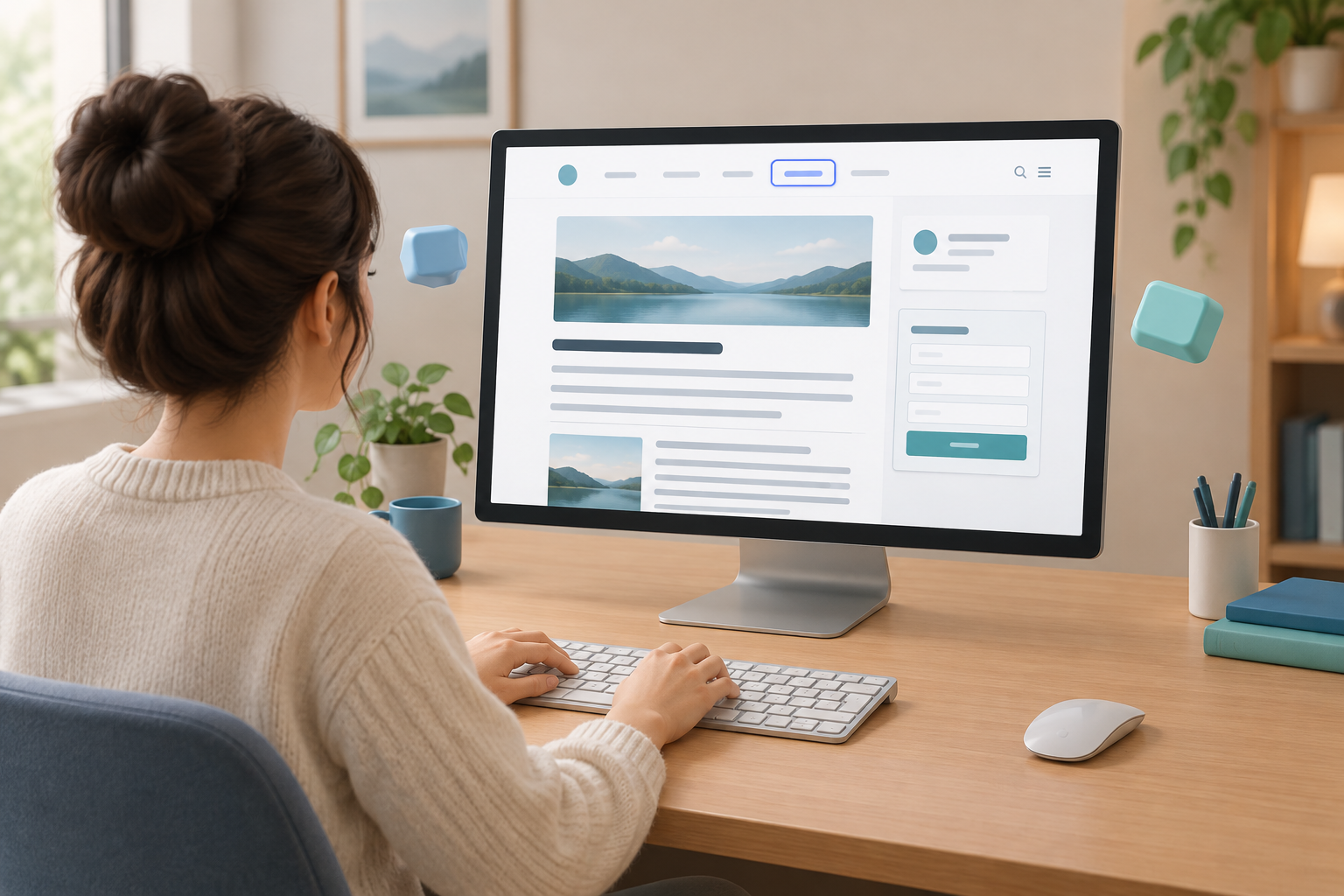
You can check whether people can use your website without a mouse by putting the mouse and trackpad aside and navigating a live page with your keyboard. Try to reach and use the links, buttons, form fields, menus, and other controls needed for a visitor’s task. Notice whether you can see which item is active, whether the sequence remains understandable, and whether you can move on after using a control.
The W3C Web Accessibility Initiative describes its Easy Checks as a rough first review of a webpage. Its keyboard check focuses on whether controls can be reached and operated, focus is visible, the order makes sense, and users can leave each control. Use your findings as observations to investigate—not as an audit or certification.
A page that works with a keyboard may still create barriers for people using screen readers, captions, magnification, or other access methods. WCAG 2.2 covers a broader set of accessibility requirements, including visible keyboard focus, keyboard traps, and focused components that are entirely hidden by content added by the site author. W3C published WCAG 2.2 as a Recommendation on December 12, 2024.
- Useful conclusion: “I could not reach the main navigation using the keyboard in this browser.”
- Unsupported conclusion: “The website is accessible” or “The website conforms to WCAG” based on this check alone.
Choose a representative page and prepare to test
Start with a real page that contains the controls visitors need to use, then test complex tasks separately.
Choose a live page with several useful examples, such as an article with site navigation, links, search, and a newsletter form. If visitors also need to book an appointment, check out, or complete a longer application, test that workflow separately. A simple article cannot tell you whether a checkout or booking process works with a keyboard.
Use the browser and device you normally use, and note which ones they are. Start at the top of the page and avoid switching back to the mouse during the test. If a control seems to be skipped, browser or operating-system keyboard settings can affect what receives focus. Check your setup, and if practical repeat the test in another browser before deciding the page itself is at fault.
- Open the live webpage you want to check, rather than relying only on an editor preview.
- Note the page title or address, your browser, and whether you are using a computer or another device.
- Put the mouse and trackpad aside, then begin at the top of the page.
- Keep a short checklist nearby so you can record where focus moves and what happens.
Use Tab and Shift+Tab to check focus and sequence
Move through the page in both directions, paying attention to whether focus is visible and the sequence stays usable.
Press Tab to move forward through items that can receive keyboard focus. Press Shift+Tab to move backward. You are not expected to land on every piece of text or image; concentrate on interactive controls and any navigation aids needed for the page’s main task.
As focus moves, look for a clear visual change—such as an outline or highlight—around the active item. If you cannot tell which link, button, or field is selected, it may be difficult to operate the page reliably. Continue through the header, main content, forms, sidebars, and footer. Note controls you expected to reach but did not, focus that disappears, or an indicator that is hard to distinguish.
Ask whether the sequence is understandable, not whether it exactly copies the page’s visual layout. For example, a sidebar displayed beside an article might appear later in the focus sequence. That difference is not automatically a problem if the order preserves meaning and people can still use the page. W3C’s guidance on focus order makes this distinction explicit.
Also notice whether a sticky header, banner, or other page content covers the focused item. WCAG 2.2 includes a requirement that focused components are not entirely hidden by content created by the site author.
- Can you see which item currently has focus?
- Can you reach the controls needed for the page’s main task?
- Does the order remain understandable, even if it differs from the visual arrangement?
- Does focus stay visible when the page scrolls or other content appears?
Try the controls instead of only reaching them
A control is not useful merely because it receives focus; test its intended action and whether navigation can continue afterward.
When focus lands on a link, button, or field, try the action a visitor would need. For familiar built-in controls, common keyboard actions include Enter to follow a link and Enter or Space to activate a button. Behavior can vary, especially in custom widgets, so treat these as starting points rather than a universal rule. Follow visible instructions or component documentation if the expected interaction is unclear.
For a form, see whether you can reach each field, enter harmless test text, and move to the next step. If a validation message appears, note whether you can identify the field that needs attention and continue. Use a test or staging environment, or a form you control. Do not submit private information, a real payment, or an unintended message just to test keyboard access.
After you activate a control, try to continue through the page. If you cannot leave the control or interaction, write down where focus became stuck and what you pressed. W3C’s Easy Checks advises checking whether users can leave controls, and WCAG includes a criterion against keyboard traps.
Test menus, forms, and pop-ups as separate tasks
A page-wide pass may miss problems inside an interaction, so test each important component from opening it through leaving it.
For a menu, try to reach and activate its trigger, then check whether you can reach and use its options. Record whether the menu opens, whether its contents can be reached, and how you continue afterward. Custom menus may behave differently from standard links and buttons, so consult documentation when the expected keyboard interaction is not clear.
For a form, test the complete route from the first field to its next step, including choice controls and safe-to-trigger error states. For a dialog or notice, check whether its important controls are reachable and whether you can dismiss it or otherwise continue. Some interfaces temporarily keep focus within a component while it is open; for this first check, note whether you can complete the task and get out rather than becoming stuck.
| Control | What to try | What to record |
|---|---|---|
| Link | Reach it and try to follow it using the keyboard | Whether focus is visible and the destination behaves as expected |
| Button | Reach it and try its intended action | Whether the action occurs and you can continue navigating |
| Form field | Reach it, enter test text, and move to another field | Whether the field is identifiable and errors can be acted on |
| Menu | Reach its trigger, open it, and try an option | Whether the trigger and options work and you can move on |
| Dialog or pop-up | Reach its controls and try to dismiss it or continue | Whether its task is possible and focus does not become stuck |
Record the problem and choose a next step
Specific observations help the person responsible for a theme, plugin, or custom component investigate without guesswork.
For each issue, note the page, the control, your browser and device, the keys you used, and what happened. Describe what you observed rather than diagnosing the code. For example: “On the article page in my desktop browser, Tab moves from the search field to the footer without reaching the main navigation. I could not see a focus indicator on the newsletter button.”
If useful, capture a screenshot of the focus state, taking care not to include personal information. Share the report with whoever maintains the affected component. On a WordPress site, that might be the theme or plugin maintainer, a developer, or the person managing the site; the issue may not be with WordPress itself.
If an expected control does not receive focus, check your browser’s keyboard settings and repeat the test in another browser if possible. If the problem remains, send your notes to the maintainer. After a fix, repeat the same steps on the affected page and check other pages that use the same component. A repair to one interaction is a reason to retest, not proof that every page is fixed.
- Page: the title or address where the issue occurs.
- Control: the specific link, field, menu, or other element.
- Steps: the key sequence and action you attempted.
- Result: what happened, including whether focus was visible or became stuck.
- Context: browser, device, and relevant keyboard settings.
- Follow-up: who will investigate and what you checked after a change.
Know what to do after a first keyboard check
Use the results to prioritize fixes, then seek a broader evaluation when the issue or the stakes call for more than a first pass.
Start with problems that block a main task, such as being unable to reach the site navigation, submit a form, or leave an open interaction. Share clear reproduction steps with the responsible maintainer and retest after a change. If behavior differs across browsers, include that information rather than treating one test as conclusive.
For complex interactions, repeated failures, or a formal question about WCAG conformance, arrange a fuller accessibility evaluation. A keyboard-only check can help you identify where to investigate and what to ask about, but it does not test every accessibility need or establish conformance. Your practical next step is simple: choose one representative page, run the check, document any barrier, and follow up on the most important task it affects.
Frequently asked questions
Which keys should I use to test a website without a mouse?
Start with Tab to move forward and Shift+Tab to move backward. Then try the keyboard action for each focused control. Common built-in controls often use Enter or Space, but custom components can differ; check their instructions if the expected action is unclear.
What should I do if Tab skips a menu or form control?
Check your browser’s keyboard-navigation settings and repeat the test in another browser if possible. If the control remains unreachable, record the page, control, browser, and steps you tried, then share the observation with the site or component maintainer.
Does passing a keyboard-only check mean my site meets WCAG?
No. This is a limited first-pass check for some keyboard barriers. WCAG covers additional accessibility requirements, so passing this test cannot establish conformance.
Does the tab order have to match the visual layout?
Not exactly. The sequence should preserve meaning and let people use the page. A different sequence can still be logical; investigate when it becomes confusing or makes a task difficult or impossible.
Sources & further reading
Explore the original sources behind this article. Our editorial perspective is separate from the organizations we reference.