How to Make a Scanned PDF Searchable—and Check the Text
Add OCR text to an image-only PDF, keep the original, then search, copy, and compare important words against the page image before relying on them.
Check whether the PDF already has searchable text
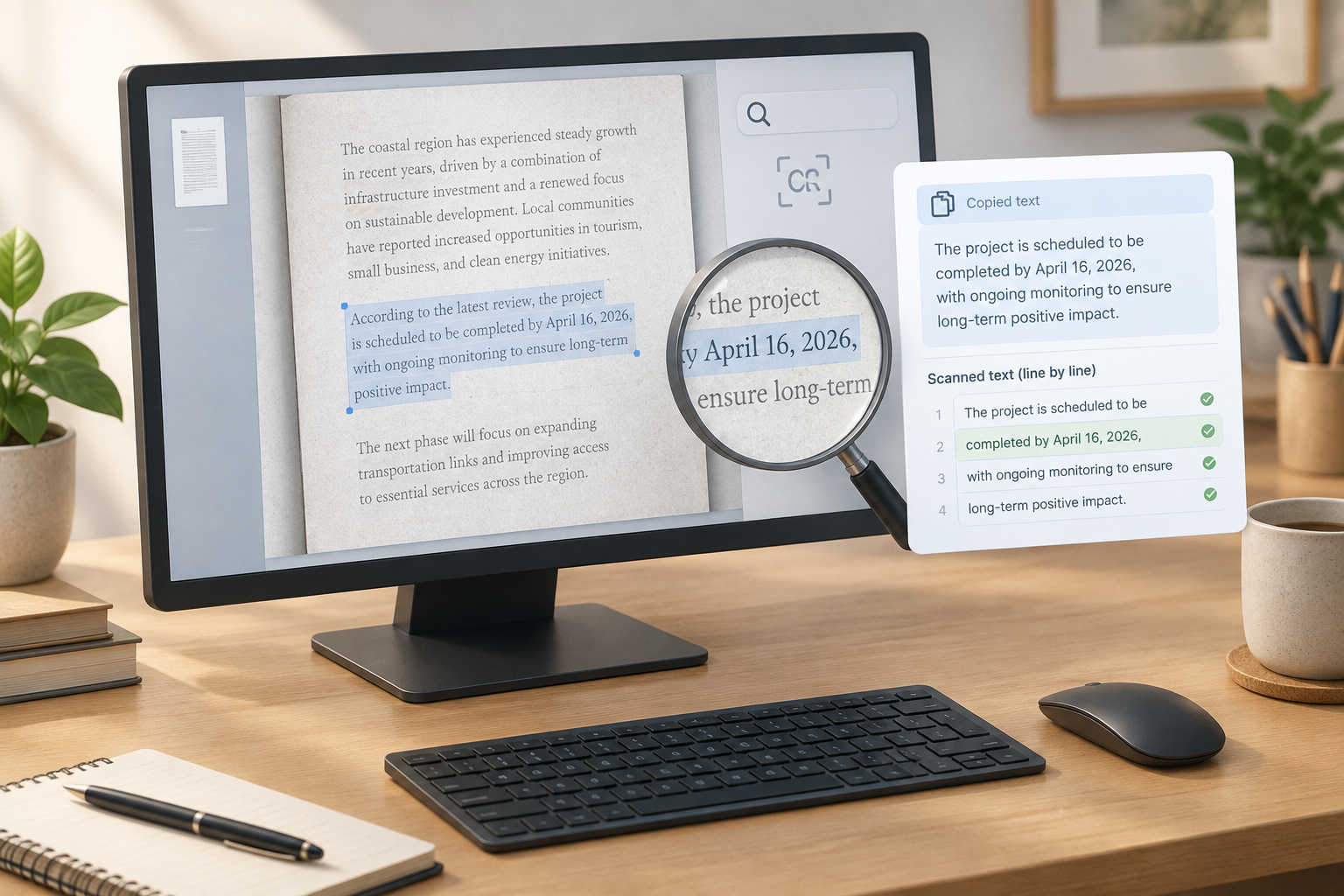
A PDF can look like a page of writing while storing only a picture of that page.
Before running OCR, test the file. Open a page with a sentence you can read and try to select a few words. Then use the PDF viewer’s search function to look for a distinctive word visible on that page.
If you can select text and the search finds it, the PDF already has at least some text. If you cannot select or find visible words, it may be an image-only scan. Some files mix text and page images, so test more than one page—especially if the document was assembled from several sources.
Keep in mind that a failed search is a clue, not proof: the word may have been typed differently, or the viewer’s search may be limited. Try a short, clearly printed word and confirm it is visible in the page image.
Choose OCR or an editable conversion
Pick the output based on what you need to do with the document afterward.
OCR, short for optical character recognition, identifies text in page images. A tool can store recognized words in a text layer associated with the original page, so you can search for and often select or copy text while retaining the scanned appearance. Adobe describes using Acrobat to add searchable text to scanned documents and recommends reviewing the recognition afterward. (See the linked reference for this section.)
An editable conversion is different: it turns the content into a document you can revise, such as a word-processing file. That can help when you need to rewrite or reuse a passage, but it may alter columns, tables, footnotes, spacing, or page breaks. Treat the converted document as a new draft to check—not as a faithful visual duplicate.
Choose a searchable PDF when your main goal is finding words in a document, such as a manual or a folder of invoices. Choose an editable conversion when you need to change the text, and budget time to check both wording and layout.
| Your goal | Better starting point | What to check |
|---|---|---|
| Find a word or copy a short passage | Searchable PDF with an OCR text layer | Search and copy text; compare it with the page image |
| Revise paragraphs or reuse content in a new document | Editable document conversion | Wording, reading order, tables, columns, and page breaks |
| Keep the scan’s appearance while making it easier to search | OCR applied to a copy of the PDF | Confirm the page images remain legible and the text layer works |
Prepare the scan before you run OCR
Recognition can only work with the image it receives, so start by checking what the pages actually show.
Open the PDF and look for pages that are sideways, unusually faint, blurred, cropped, or shadowed. If you still have the paper, a clearer rescan may be more useful than trying several OCR settings on a poor image. For a phone scan, make sure the page fills the frame and that the text is in focus.
If the OCR tool offers a document-language setting, choose the language used on the page. A wrong setting can lead to nonsensical substitutions, especially for names or words with accents. For a multilingual document, check whether the tool can handle the languages present; if it cannot, results may need more manual correction.
If you have several versions of a file, label them clearly—for example, “original-scan” and “OCR-working-copy.” This makes it less likely that you will overwrite or mistake the untouched scan for the processed version.
Run OCR on a copy of the PDF
The basic workflow is similar across tools, even when menu labels vary by version.
In a desktop PDF editor such as Adobe Acrobat, open the copied PDF and look for its scanned-document or text-recognition tool. Choose the option that recognizes text in the document, review any language or page-range settings, and run the process. Then save the result under a new name. Adobe’s instructions describe OCR as adding a searchable text layer and include a review step for the recognized text. (See the linked references for this section.)
Google Drive offers another route: upload a PDF or image, then open it with Google Docs to convert it to text. Google’s help page says the file should be 2 MB or smaller and notes that formatting such as tables, columns, and footnotes may not be preserved. This method is therefore more suitable when you want extracted text to work with than when you need the original layout to remain intact.
Tool availability, account requirements, and interface wording can change. If the option you need is missing, consult the current help for the app you are using. You can also use another OCR tool that fits your device and requirements. Before uploading, consider whether the document contains personal, financial, medical, business, or otherwise confidential information; check the service’s current privacy and file-handling terms, or choose an offline tool if that better fits your needs.
- Make a separate copy of the original PDF.
- Open the copy in an OCR-capable PDF app or choose a conversion route that fits your goal.
- Select the document language if the tool offers that setting, then run text recognition.
- Save the processed file with a distinct name so you can tell it apart from the scan.
- If the output is an editable document, review its formatting as well as its text.
Test the recognized text before relying on it
A successful OCR process means text was recognized, not that every word was read correctly.
Start with a word you can clearly see on a page. Search for it in the processed PDF. If the search finds the right location, select and copy a short sentence into a plain-text note or another safe place. Compare the copied wording with the image, including punctuation and line breaks that might affect meaning.
Then check a few high-consequence details by eye: people’s names, dates, account or reference numbers, measurements, amounts, and instructions. A single character can change the meaning of a number or identifier. For example, compare a scanned invoice’s total and invoice number directly with the recognized text rather than assuming the copied values are correct.
Tables and multi-column pages deserve a separate check. A tool may recognize the words but place them in the wrong order, or an editable conversion may not preserve the table structure. Compare rows and headings against the page image; do not rely on copied text alone if the relationships between cells matter.
If the document is long, sample pages from the beginning, middle, and end, plus any page with small print, handwriting, stamps, or an unusual layout. This is a practical check, not a guarantee that every page is error-free.
- Search for a clearly visible word on more than one page.
- Copy a short passage and compare it with the scan.
- Verify names, dates, numbers, and amounts against the page image.
- Inspect tables, columns, footnotes, and small print separately.
Correct errors or try a clearer route
When a check fails, work out whether the problem is the scan, recognition, or the chosen output format.
If a word is visibly wrong in a PDF editor, use its review or correction feature where available. Acrobat provides a workflow for reviewing uncertain recognized words and fixing text-recognition errors. After making corrections, search for the corrected word and compare it with the scan again. (See the linked reference for this section.)
If many words are wrong, inspect the image first. A cleaner, sharper, upright scan or a more suitable language setting may help. Then rerun OCR on a fresh copy rather than layering a new attempt over a file you have already edited. If only a few isolated words are wrong, correcting those by hand may be simpler.
If the text is correct but the document looks different, you may have converted it into an editable document rather than adding a searchable layer to the PDF. Return to the original scan and use an OCR-to-PDF option if preserving the page appearance is the priority. Conversely, if you need to edit the words, use the converted document but check its layout and reading order before reusing it.
Save the right version and decide what to do next
A simple handoff routine keeps the scan, searchable copy, and any editable conversion distinct.
Keep the untouched original, the searchable PDF, and any editable version as separate files. Use names that describe their role, and store them in a location appropriate to the document’s sensitivity. If you send or archive the OCR copy, say that its text layer was machine-recognized when that context matters.
Use this decision rule: if you only need to find or copy text, keep a searchable PDF and verify the passages you need. If you need to revise or repurpose the content, convert to an editable document and inspect both its words and formatting. If the recognition is poor, improve the scan or try a different suitable OCR route; do not assume that repeating the same process will make uncertain text reliable.
For a routine document, a quick search-and-copy check may be enough to make it more convenient to use. For records where a wrong name, date, or figure could matter, compare the specific information you plan to use directly with the scanned page and preserve the original as your reference.
Frequently asked questions
How can I tell whether a PDF is already searchable?
Try selecting a sentence and searching for a clearly visible word. If neither works on a page, it may be image-only. Test more than one page because a PDF can combine scanned images and searchable text.
Does OCR make every word in a scanned PDF accurate?
No. OCR creates recognized text that can contain mistakes. Search for visible words, copy a short passage, and compare important details—especially names, dates, numbers, and table entries—with the page image.
Should I make a searchable PDF or convert it to Word?
Use a searchable PDF if you mainly need to find or copy text while keeping the scanned pages’ appearance. Convert to an editable document if you need to revise the content, then check the wording and layout because tables, columns, and page breaks may shift.
Can I use Google Drive to extract text from a scanned PDF?
Google Drive can convert a PDF or image by opening it with Google Docs. Its help page says the file should be 2 MB or smaller and warns that formatting such as tables and columns may not be preserved. Check current tool requirements and consider document privacy before uploading.
What should I do if OCR keeps misreading the scan?
Check whether the page is upright, sharp, and legible, and select the correct language if that setting is available. Try a clearer scan or another appropriate OCR tool, then verify the result against the image. Correct isolated errors where the app allows it.
Sources & further reading
Explore the original sources behind this article. Our editorial perspective is separate from the organizations we reference.
- [S1] Recognize text in scanned PDFs with Acrobathelpx.adobe.com
- [S2] Convert PDF and photo files to text - Computer - Google Drive Helpsupport.google.com
- [S3] Fix text recognition errors in scanned PDFshelpx.adobe.com