How to Borrow Your First Ebook or Audiobook With Libby
Add your library, find an available ebook or audiobook, and borrow it in Libby. Learn what to do when a title is on hold, how to read or listen offline, and where to get help with card access.
How to borrow your first ebook or audiobook with Libby
Start with your library card, then add the library whose collection you want to use.
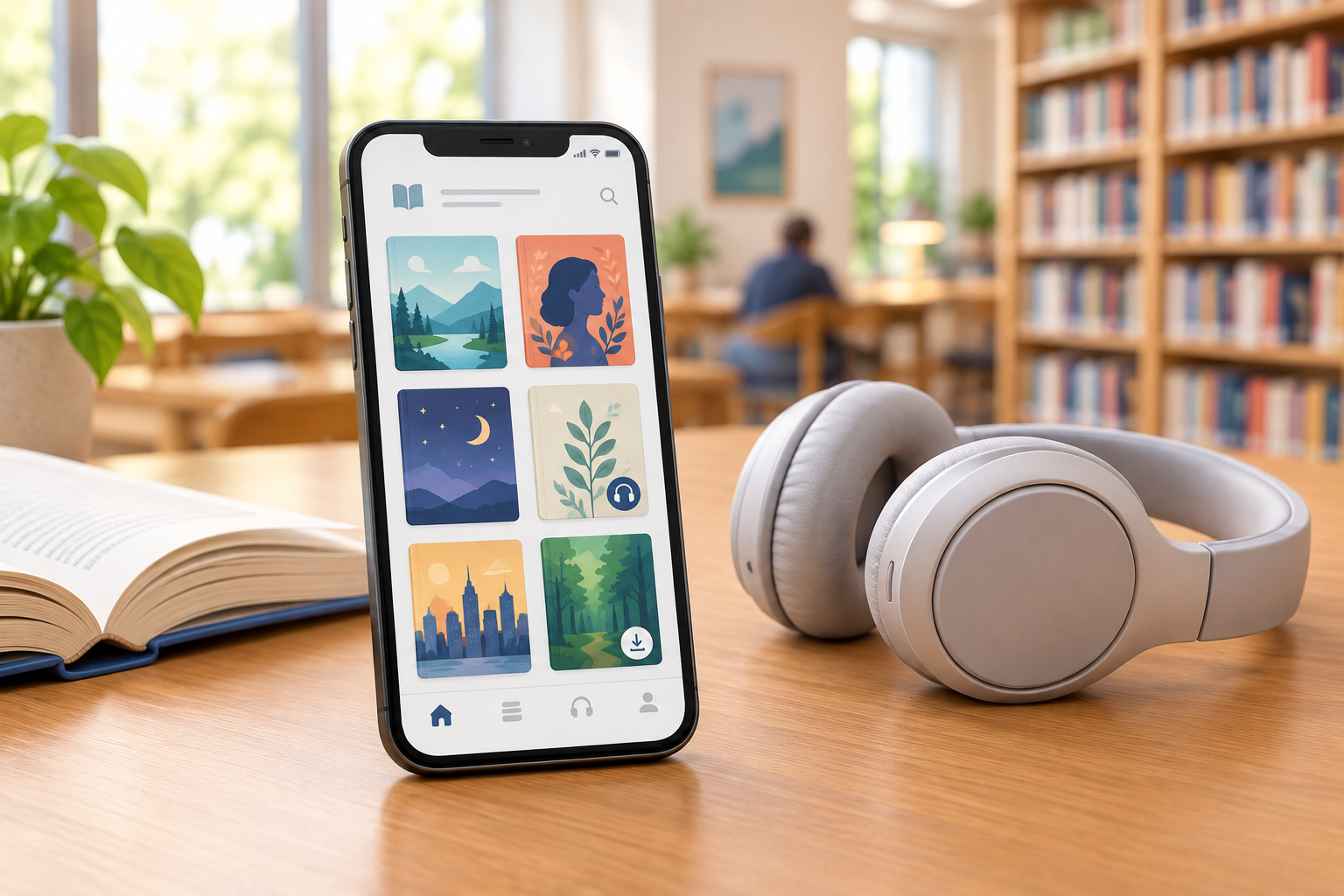
To borrow an ebook or audiobook in Libby, find a participating library, sign in with an accepted library card, choose an available title, and tap Borrow. If the title is not available, you can usually place a hold instead. After borrowing, open the loan from your Shelf to read or listen.
The exact titles, formats, card requirements, loan periods, and checkout limits depend on the library. Use the steps below as a general guide, and follow the instructions shown in Libby and by your library.
Before you start: have your library details ready
A little preparation can prevent sign-in delays, especially if you are new to your library’s digital services.
You will need a valid library card for a library that offers Libby. Keep your card number handy, along with your PIN or password if your library uses one. If you have more than one card, you may be able to add multiple libraries or cards, but access and borrowing rules are managed by each library.
If you do not yet have a library card, check the library’s own website or contact it to learn how to apply. Some libraries offer online registration, while others may require an in-person visit or proof that you meet local eligibility rules. Do not assume that an online card is available or that a card from one area works at another library.
Add your library and sign in
Find the correct library listing first, then complete the sign-in process it provides.
Open the Libby app on a phone or tablet, or visit the Libby website in a browser. Choose the option to find a library and search by the library’s name, city, or ZIP code. Check the listing carefully if several nearby libraries appear, since a similar name does not necessarily mean it is the same system.
Select the library and follow the prompts to sign in with your card. Depending on the library, you may enter a card number and PIN, or use another sign-in method. If you already use Libby with a different library, look for the app’s option to add another library or card; the wording and placement of controls can change between versions.
If the card is rejected, check for typing errors and confirm that it is active. If you still cannot sign in, contact the library that issued the card. Library staff can confirm eligibility, account status, and the correct login steps.
Search the collection for an ebook or audiobook
Search by a specific detail when you have one, or browse by subject when you are still choosing.
Use the search field to look for a title, author, or subject. If you are browsing, explore the categories and recommendations available for your library. A book may appear in search even when it is currently checked out, so look at its availability before expecting to borrow it right away.
Check the format shown on the title’s details page. If you want to listen, choose an audiobook; if you want to read on screen, choose an ebook. Not every title is offered in both formats, and the formats available to you depend on your library’s collection. If your search is too narrow, try an author’s name, a shorter part of the title, or a broader subject.
- For a particular book, search its title and verify the author so you select the right edition or work.
- To browse, start with a subject or category and narrow the results by availability or format when those filters are offered.
- Open the title details before borrowing to check the format and the current availability.
Borrow an available title or place a hold
The title page shows whether you can start reading now or need to wait for a copy.
When a title is available, choose Borrow and review the details shown before confirming. Your library sets its checkout limits, and the loan-period choices can vary. If Libby offers more than one loan length at checkout, select the option that fits your plans; do not assume every library or title offers a choice.
If the title is checked out, choose Place Hold if that option is available. Libby will show the hold status and may provide an estimate, but availability can change as other readers return or renew their loans. A hold is a place in the queue, not an immediate loan. Check Libby for updates and review the settings or notifications available for your account.
A quick way to choose
If you want something to read today, filter or browse for available titles. If a particular book matters more than timing, place a hold and keep a backup title in mind. Either way, check the loan details before confirming.
Open your loan and prepare for offline use
Once borrowed, the title is available from your Shelf; offline access depends on using the mobile app and downloading the loan.
Go to your Shelf in Libby and open the borrowed title. The app provides the controls for reading an ebook or listening to an audiobook. If you use Libby in a browser, keep an internet connection available: Libby’s website requires one.
In the mobile app, ebook and audiobook loans can be downloaded for offline use. Connect to Wi-Fi and allow the title to download before you travel or expect to lose internet access. Download settings can be changed, so check them if a loan does not download as expected. The download feature is for the mobile app, not the Libby website.
| Where you use Libby | What to expect | Useful preparation |
|---|---|---|
| Libby mobile app | Open loans on your device; ebooks and audiobooks can be downloaded for offline use. | Download the loan over Wi-Fi before going offline, and check the app’s download settings. |
| Libby website | Use Libby with an internet connection; offline use is not available through the website. | Make sure you have reliable internet when you plan to read or listen. |
Keep track of due dates, limits, and device changes
Your Shelf is the practical place to check active loans and holds, while your library determines the rules attached to them.
Check the due date shown for each loan rather than relying on a general rule about how long ebooks or audiobooks last. Loan periods and checkout limits are set by the library, and the available options can depend on the title. Eligible loans return automatically at the end of the loan period; if you finish early, check the title’s options for whether an early return is available.
If you are switching to a replacement or reset device, Libby’s recovery passkey can help restore Libby data such as cards, loans, holds, and tags. Set it up and follow the app’s instructions while you still have access to your current setup. A recovery passkey helps restore Libby data; it does not replace your library card or change the library’s account rules.
Troubleshoot common first-time problems
When something goes wrong, identify whether the issue is with the app, the card, or the library’s collection.
If a card will not sign in, verify the number and PIN, then contact the issuing library if the problem continues. If a title does not appear, try a broader search and confirm that the right library or card is selected. The title may not be part of that library’s collection, or the library may offer it in a different format.
If you can borrow a loan but cannot use it offline, check that you are in the mobile app, that the device has connected to Wi-Fi, and that the app’s download settings allow downloads. If you are using the website, an internet connection is required. For account eligibility, missing titles, limits, or persistent card errors, the library is the best source of help because these details are library-specific.
- Check that the correct library and card are selected.
- Confirm the title’s format and availability on its details page.
- For offline use, switch to the mobile app and check Wi-Fi and download settings.
- Contact the library for card access, collection, or borrowing-rule questions.
Frequently asked questions
Do I need a library card to use Libby?
You generally need a card or another sign-in method provided by a library that offers Libby. Check with the library to learn its application and eligibility rules.
Why can’t I find a book in Libby?
The title may not be in the collection associated with your library, or it may be listed under a different title or format. Try a broader search and check which library or card is selected. Contact the library if you need to confirm its collection.
Can I use Libby without internet?
The Libby mobile app can download ebook and audiobook loans for offline use. Download the loan while connected to Wi-Fi. The Libby website requires an internet connection.
How long can I borrow a Libby book?
The loan period depends on the library and the options offered for that title. Check the details shown at checkout and the due date on your Shelf.
What should I do if my library card will not sign in?
Check the card number and PIN, then contact the library that issued the card if you still cannot sign in. The library can verify your account and explain its access requirements.
Sources & further reading
Explore the original sources behind this article. Our editorial perspective is separate from the organizations we reference.
- [S1] Getting started with Libbyhelp.libbyapp.com
- [S2] Libby quick-start guidehelp.libbyapp.com
- [S3] Borrowing limitshelp.libbyapp.com
- [S4] Digital Books & More for Public Libraries - OverDrivecompany.overdrive.com