Are Emergency Alerts Enabled on Your Phone? A Quick iPhone and Android Check
Check where emergency-alert settings live on iPhone and Android, understand test-alert controls, and learn why enabled settings cannot guarantee an alert will arrive.
Check your phone’s emergency-alert settings before you need them
The quickest check is to find the government-alert controls for your phone, then confirm which options are available on your device.
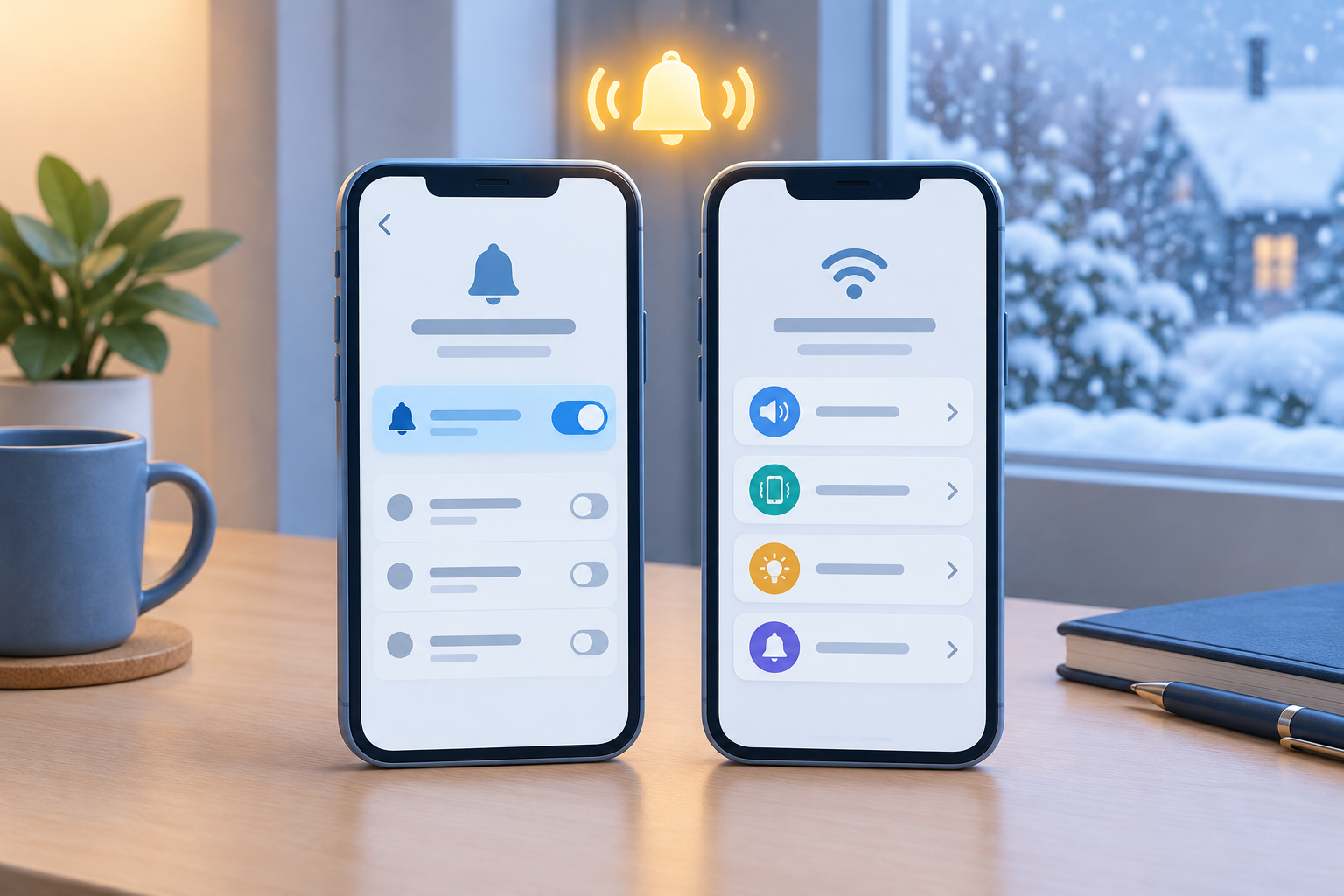
To check emergency alerts on an iPhone, open Settings, tap Notifications, and scroll toward the bottom to Government Alerts. On many Android phones, go to Settings → Notifications → Wireless emergency alerts. If your screen differs, search Settings for “emergency alerts” or check the current instructions from your phone’s maker.
These settings are not the same as Emergency SOS, notifications from a weather app, or ordinary app notifications. Changing one does not automatically configure the others. This guide focuses on the phone’s government-alert controls, not on interpreting the meaning of a weather watch or warning.
How to check Government Alerts on iPhone
Start with Notifications, but expect the available controls to depend on where you are and which alerts local policy allows you to manage.
Open Settings → Notifications and scroll to the bottom of the screen. Apple places Government Alerts in this area. Review the switches shown there rather than assuming every iPhone has an identical list.
The options can vary by region, and local policy affects which types of alerts can be turned off. If you do not see a control described elsewhere, that does not necessarily mean the phone is missing a feature; availability and controls depend on your region. Apple also notes that supported network service is relevant to Government Alerts.
If you are checking a family member’s phone, inspect that device directly. Do not assume that a setting on your iPhone applies to another person’s phone, even if both devices use the same wireless plan.
- Open Settings.
- Tap Notifications.
- Scroll to Government Alerts and review the controls displayed.
How to find Wireless Emergency Alerts on Android
Android provides a general route, but manufacturers and software versions can place or label controls differently.
On Android, the general path is Settings → Notifications → Wireless emergency alerts. Depending on the phone, this area may include controls for alert types, alert history, sound, or vibration. The exact options are not universal: Google cautions that paths and available settings can vary by phone.
If the menu is not where expected, use the search field in Settings and try “wireless emergency alerts” or “emergency alerts.” If that does not help, look up the instructions for your phone’s specific manufacturer and model. A menu that differs from a friend’s is not, by itself, evidence that your phone cannot receive alerts.
Review any controls shown on your own device before changing them. If you are unsure what a particular switch does, check the phone maker’s current support instructions rather than guessing from a similar-looking menu on another model.
- Open Settings and tap Notifications.
- Look for Wireless emergency alerts.
- Review the available alert types and other controls on that device.
Live alerts and test alerts are different
A test-alert option concerns test messages; it is not a master switch for live emergency alerts.
A test alert lets an authorized organization check aspects of an alerting system. It is distinct from an alert issued for a real emergency. FEMA’s guidance says that enabling or disabling Wireless Emergency Alert tests does not affect whether a phone receives live emergency alerts.
That distinction matters if you see a “test alerts” control in your settings. Do not switch it on or off expecting it to repair live-alert reception. If a test message is not received, that result alone does not establish whether the phone would receive a live alert; likewise, receiving a test is not a guarantee that every future alert will arrive.
The FEMA document describing test alerts carries an October 2022 footer date. Treat it as guidance about the distinction between tests and live alerts, not as a newly issued compatibility notice.
What the settings can—and cannot—tell you
A menu check confirms what controls your phone currently displays, not every condition involved in alert delivery.
If the relevant alerts are enabled, that is a useful check. It does not prove that your particular phone will receive every alert in every situation. FEMA’s handset guidance discusses the role of device make, model, and supported version; that is a general reason not to treat a settings screen as a compatibility guarantee.
Network and coverage conditions can also matter. If you are in an area without usable service, or your device or service does not support the alert, an enabled switch cannot remove those limitations. Avoid relying on a phone alert as your only way to learn about an urgent local situation.
Use the alert settings as one part of staying informed. Keep the phone’s software and carrier service in mind, and consult official local information when you need current instructions. This is separate from configuring Emergency SOS or deciding which weather, news, or public-safety apps to use.
| What you check | What it can tell you | What it cannot guarantee |
|---|---|---|
| Government Alerts on iPhone | Which Government Alerts controls are displayed and their current state | That every alert type is available in every region or that every alert will arrive |
| Wireless emergency alerts on Android | Which alert options your device displays and their current state | That another Android phone has the same menu or capabilities |
| Test-alert control | Whether the test-alert option is enabled, if your phone provides one | Whether live alerts will or will not be received |
A practical check to do now
Use this short routine to check the phone in your hand and follow up only if the menu or service remains unclear.
A few minutes spent checking the actual device is more useful than relying on a generic screenshot or instructions written for another model. If you manage more than one phone, repeat the check on each device.
- Identify the phone as an iPhone or Android device and open its Settings app.
- On iPhone, open Notifications and scroll down to Government Alerts. On Android, look under Notifications for Wireless emergency alerts.
- Review the controls and current states shown on that phone. Note any options that are absent instead of assuming they must appear.
- If the path differs, search Settings for “emergency alerts,” then consult support instructions for the phone’s exact model and software.
- If you still have questions about whether the phone and service support alerts, ask the device maker or carrier. Keep in mind that even supported, enabled alerts are not a promise of delivery in every circumstance.
Frequently asked questions
Where are emergency-alert settings on an iPhone?
Open Settings → Notifications and scroll toward the bottom to Government Alerts. The controls available depend on your region and local policy.
Where are Wireless Emergency Alerts on Android?
The general route is Settings → Notifications → Wireless emergency alerts. Android menu paths and available options vary, so use Settings search or the phone maker’s instructions if you cannot find it.
Does turning off test alerts stop live emergency alerts?
FEMA says enabling or disabling Wireless Emergency Alert tests does not affect reception of live emergency alerts. Test controls and live alerts are separate.
Does an enabled setting guarantee I will receive an alert?
No. Settings are only one part of delivery. Device support, carrier service, network conditions, and coverage can also matter.
What should I do if the menu is missing?
Search Settings for “emergency alerts,” then check current support instructions for your exact phone model. If device or service support remains unclear, contact the manufacturer or carrier.
Sources & further reading
Explore the original sources behind this article. Our editorial perspective is separate from the organizations we reference.
- [S1] Get help during an emergency with your Android phone - Android Helpsupport.google.com
- [S2] Government, Emergency and Enhanced Safety Alerts on iPhone - Apple Support (IE)support.apple.com
- [S3] FEMA - INTEGRATED PUBLIC ALERT & WARNING SYSTEM (IPAWS) TIPSTIP #26: How to Receive WEA Tests onfema.gov
- [S4] FEMA IPAWS Guidance fema.gov