How to Scan Old Family Photos Safely—and Keep Their Stories With Them
Prepare prints carefully, choose scan settings for how you’ll use the copies, and record the names, places, dates, and stories that give each image meaning.
How to scan old family photos without losing their context
A careful home process protects both the prints and the information your family knows about them.
To scan old family photos safely, begin with prints that are flat, stable, and small enough to fit fully on your scanner bed. Scan a manageable batch, choose settings based on how you will use the files, and record what you know about each image. Keep the original prints and make more than one digital copy.
The aim is not just to create image files. A scan labeled “IMG_0042” may be difficult to identify later, while a filename or note that records known people, place, and event keeps useful family knowledge close to the picture. You do not need to solve every mystery before starting: preserve what is known and clearly mark guesses.
Choose a small first batch and prepare a safe workspace
A limited first session makes it easier to test your process before handling a larger collection.
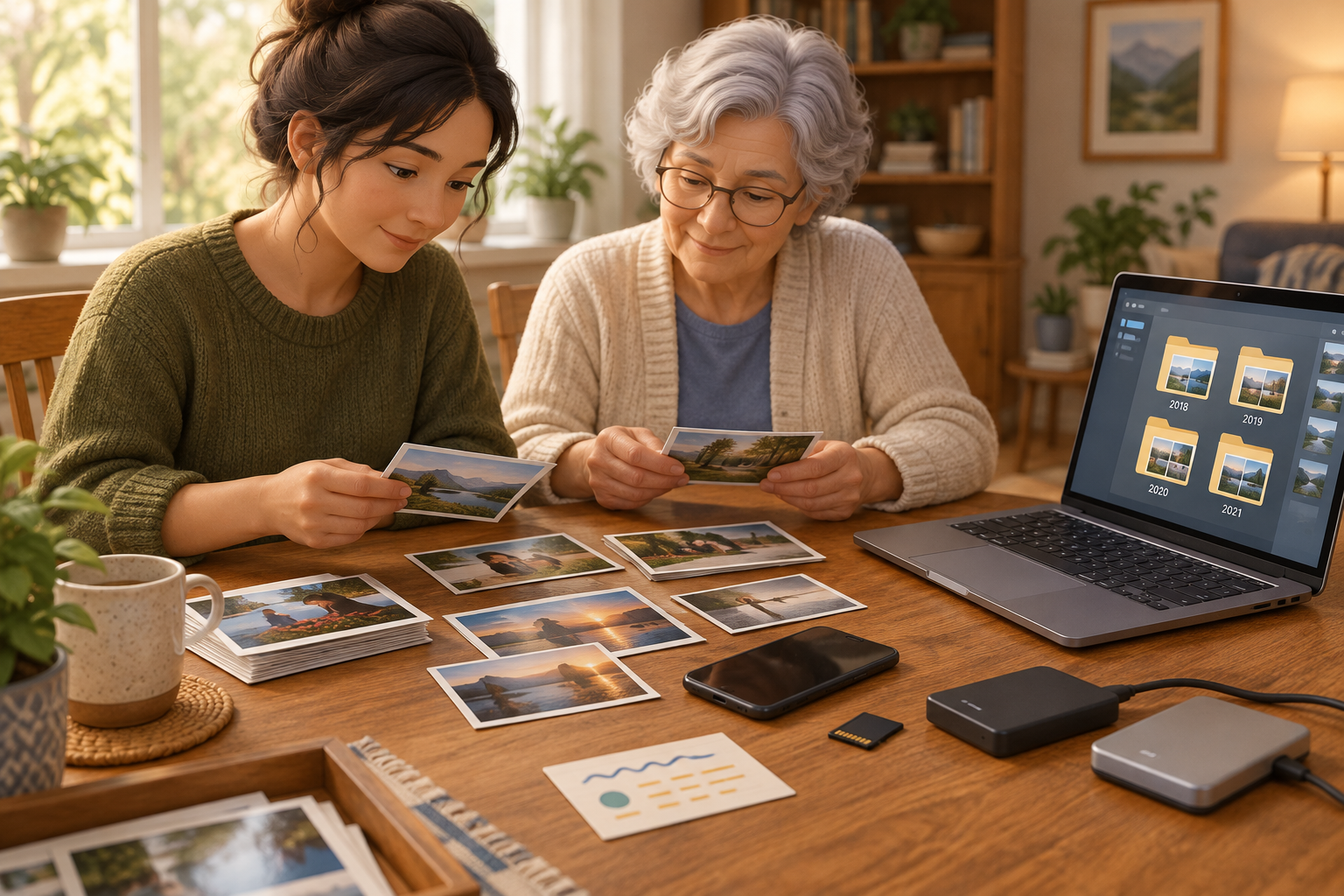
Pick a group with a clear boundary: one envelope, a small album section, or photos from a single family gathering. Before you begin, decide whether you mainly want copies for viewing on a screen, sharing with relatives, or making prints. That purpose will guide your scan choices.
Work on a clean, uncluttered surface with room to set prints down without stacking other objects on top. Handle photos gently, supporting them by their edges where practical. Avoid bending a print to remove it from an album or sleeve; if it is stuck, do not pull it free by force. Set it aside for advice from a qualified photograph conservator or preservation professional.
If you are scanning loose prints, check that the scanner glass is clean and dry. Follow the scanner maker’s instructions for cleaning rather than applying liquid directly to a photograph. Keep drinks, food, and pens away from the work area.
Check each print before you scan it
A quick condition and size check helps you decide whether to proceed, change tools, or stop.
Before placing a print on the scanner, check whether it lies naturally flat and fits completely on the scanner bed. The National Archives cautions that a lid can crease or crush an item that does not fit; do not press down to make an oversized photo fit. It also advises against automatic-feed scanners for fragile, bent, or valuable materials.
Set aside prints that are brittle, curled, cracked, stuck to another surface, or otherwise damaged. Do not use a feed scanner or try to repair the photo with tape or household products as part of a scanning session. Institutional digitization guidance can help you recognize concerns, but it cannot assess the condition of a particular family print.
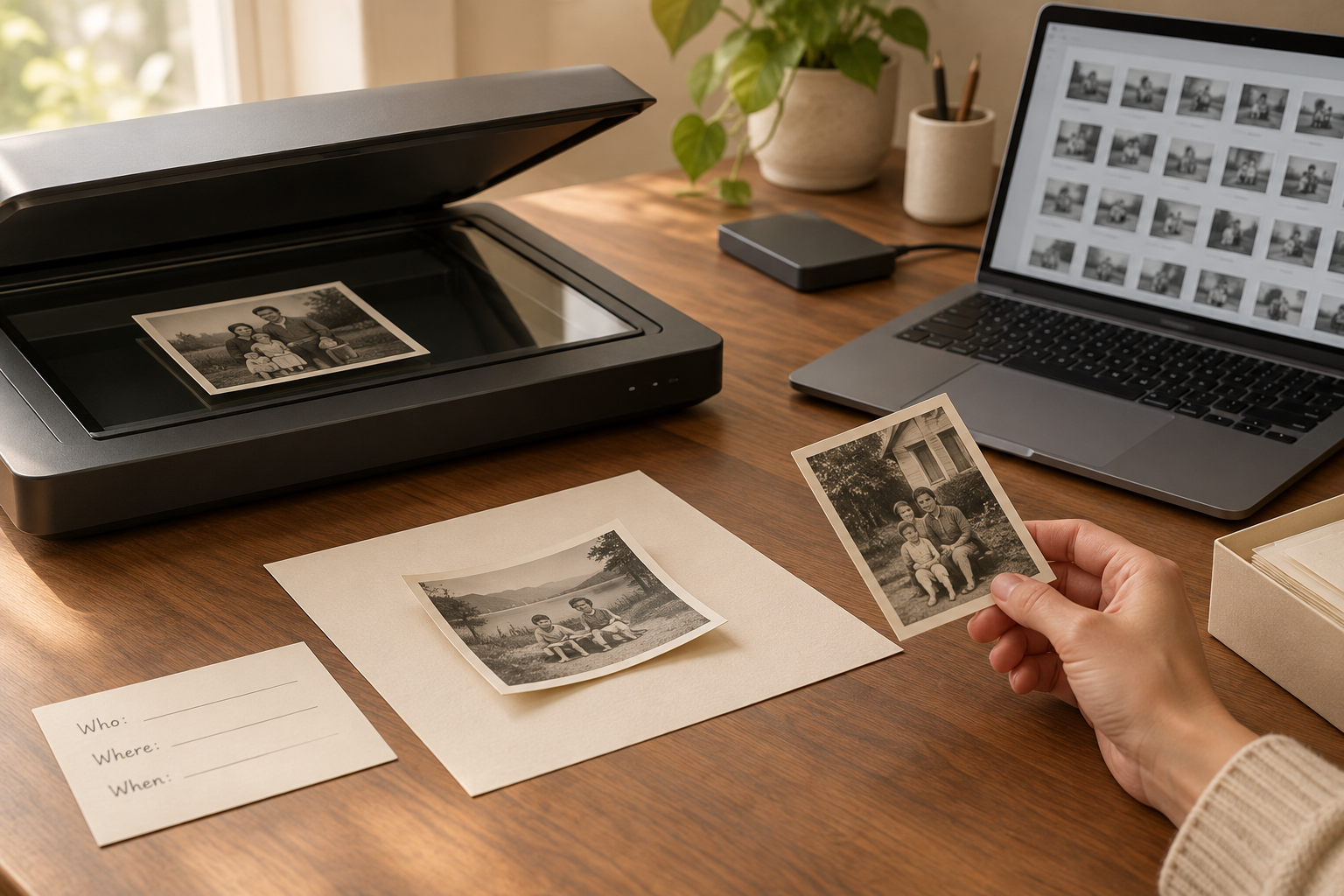
For a print that is stable and fits fully, place it gently on the glass according to the scanner instructions. If the scanner lid does not close without pressure, or the print shifts, catches, or resists, stop and choose another approach or seek help.
Choose scan settings for the way you’ll use the image
There is no single setting that suits every print, scanner, and purpose.
A scan meant for a quick family group chat has different needs from one you hope to enlarge or print. The Library of Congress says resolution should depend on both the item and its intended use, and notes that resolution is not the only factor in digitization. In practice, consider the size and condition of the print, the scanner’s capabilities, and whether you might want a larger reproduction later.
If you are unsure, scan one ordinary print as a test. View the result at a useful size on your screen and, if printing matters, try a small test print before scanning the whole batch. Check that faces and important details are clear enough for your purpose. A test lets you adjust settings without creating a large set of files that do not meet your needs.
Keep an untouched scan as your source copy, then make separate edits for cropping, brightness, or sharing. Avoid treating a sharpened or color-adjusted version as a replacement for the original scan. A phone camera can be a practical alternative when a print is too large for your scanner, but make sure the whole image is visible, the camera is held steady, and reflections do not obscure details.
| Your purpose | A practical approach | What to check |
|---|---|---|
| View or share on screens | Make a clear scan and test it on the device or service you expect to use. | Faces and key details remain recognizable after sharing. |
| Print a copy | Test one image at the size you plan to print before scanning the full batch. | Important details look clear at the intended print size. |
| Keep a flexible source copy | Save an untouched scan, then create separate versions for edits or sharing. | You can identify which file is the original scan and which has been changed. |
Keep names, dates, and stories with each scan
Consistent labels and notes make files easier to recognize without turning guesses into facts.
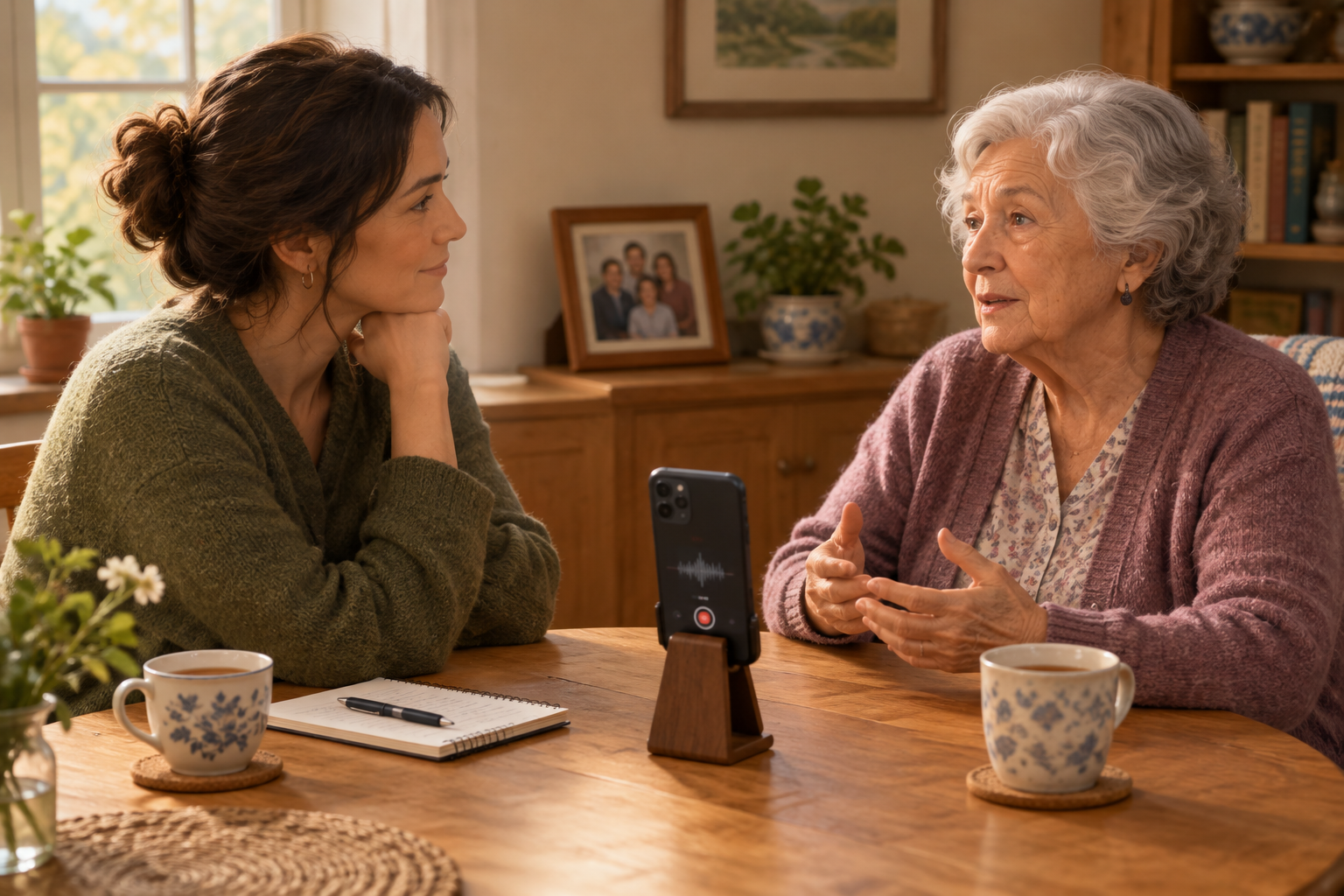
The National Archives recommends adding basic identifying context: who, what, where, and when. Write down what relatives know while you have access to the prints or can ask someone about them. Useful details might include names, a place, a family event, the approximate date, and who supplied the information.
Use one naming pattern throughout the batch, such as “1958-approx_River-picnic_Lee-family_01.” If the date or identity is uncertain, say so in the name or a companion note: “date-uncertain” or “possibly-Aunt-May.” Do not turn an estimate into an exact date simply because a filename looks neater that way.
A separate text file, spreadsheet, or catalog can hold longer stories and uncertainty notes. Give each record a filename that matches the scan, so the context remains findable if images are copied to another device. For a group photo, note which person is which when you can identify them; if you cannot, record the question for a relative rather than guessing.
- Who is pictured, if known
- What is happening or what the occasion was
- Where the photo was taken
- When it was taken, with estimates clearly marked
- Who identified the details and when they shared them
Save copies, check them, and keep the prints
Digitizing adds convenient copies; it does not make either the physical prints or the files maintenance-free.
After each session, open a few files to confirm they saved correctly, have sensible names, and include their matching notes. Keep an untouched scan and any edited or sharing versions clearly distinguished. Choose file formats your devices and intended services can open, and avoid relying on a single app or storage location.
Make multiple digital copies in separate places. The National Archives describes a 3-2-1 approach: keep three copies, on two kinds of media, with one copy stored off-site. Treat this as a planning guideline, not a promise that files can never be lost. Check periodically that copies still open and that you can access the storage accounts or devices holding them.
Keep the originals after digitizing, as the National Archives advises. Store them in a clean, dry place away from direct sunlight and avoid bending, crowding, or pressing them under heavy objects. If the collection contains fragile or especially valuable photographs, seek preservation advice suited to those specific items.
A repeatable first-session checklist
Use the same simple sequence for each batch, and stop when a print needs more careful assessment.
The first session is a chance to establish a process, not finish the family archive. Keep the batch small enough that you can label and check the files before moving on.
- Choose a small group of prints and decide how you plan to use the copies.
- Prepare a clean, uncluttered workspace and check the scanner according to its instructions.
- Inspect each print. Scan only items that fit fully and can be handled without force.
- Test one scan, review the result, and adjust settings to suit your intended use.
- Save the scan with a consistent name; record known people, places, dates, and events.
- Mark uncertain details as uncertain, and keep related notes identifiable with the image.
- Open the files, make additional copies in separate places, and put the original prints away safely.
Frequently asked questions
What resolution should I use to scan old family photos?
There is no universal resolution for every print. The right choice depends on the item, your scanner, and whether you want to view, share, or enlarge the image. Test one scan for your intended use and check the result before processing a larger batch.
Can I use an automatic-feed scanner for old photos?
Avoid automatic-feed scanners for fragile, bent, or valuable prints. For a stable print, check the equipment instructions and condition first; stop if it catches, bends, or resists. A qualified preservation professional can advise on delicate items.
What should I do with a curled or cracked photograph?
Do not force it flat or press it under a scanner lid. Set it aside and seek preservation advice, especially if it is valuable, brittle, or deteriorating.
How should I name scanned family photos?
Choose a consistent, readable pattern that can include a date or approximate date, event or place, and names when known. Mark guesses clearly as uncertain, and use a matching note for longer stories or identification details.
Can I throw away the prints after scanning them?
Keep the originals. A scan is a useful digital copy, but it does not replace the physical photograph, and digital files also need multiple copies and occasional checks.
Sources & further reading
Explore the original sources behind this article. Our editorial perspective is separate from the organizations we reference.