Before You Trade In Your Phone: A Safe Handoff Checklist
Before you erase or hand over an old phone, check that your data and sign-in methods work on the new one. Then back up, disconnect accounts, handle the SIM, and reset the device using its manufacturer’s instructions.
1. Check the new phone before you erase the old one
The safest handoff starts with the device you plan to keep, not the reset menu.
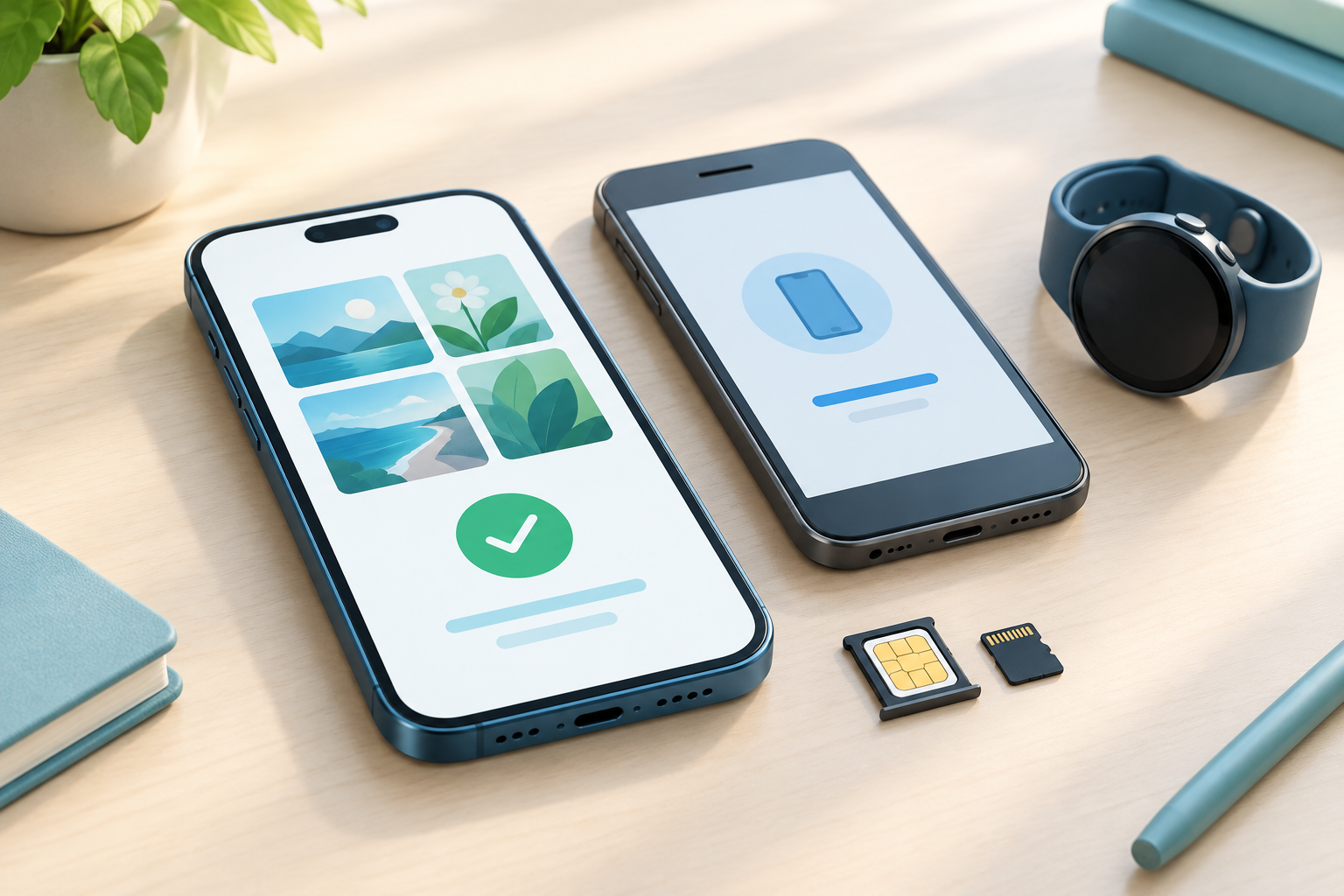
Before selling, trading in, donating, or recycling an old phone, confirm that important information is available where you expect it and that you can still sign in to essential accounts. The old phone may be your only working route to a file, verification code, or account recovery option, so do these checks before erasing it.
On the new phone, open a few recent contacts, photos, messages, and files you care about. Check important apps individually as well. Some sync through an account, while others may need their own transfer, export, or setup steps. A notice that a transfer finished is useful, but opening the items you rely on is a better practical check.
For example, sign in to your primary email, password manager, banking app, and work or school account if you use them. If an app shows missing information or asks you to verify through the old phone, pause the handoff and follow the app provider’s instructions while you still have both devices.
- Confirm you have the passwords and sign-in details you will need.
- Check access to your primary email and any recovery method you rely on.
- Keep both phones available until the checks are complete.
2. Move sign-in and recovery access
Your old phone may be part of the way you prove your identity to other services.
Check which accounts use the old phone for multifactor authentication. This could mean codes from an authenticator app, text messages to your number, device approval prompts, or a credential stored through a particular service. Transfer steps differ by app and account.
Use the authenticator app’s instructions to move or reactivate access on the new phone. Then test a sign-in where practical. If a service provides recovery codes, store them securely somewhere other than the phone you are about to erase. Do not assume that reinstalling an authenticator app automatically brings back every account.
If you are switching from an iPhone to a non-Apple phone, check Apple’s guidance on deregistering iMessage. Also review any work, school, or financial account instructions before removing the old phone from a trusted-device list. The FTC specifically advises users of authenticator apps to check whether they need to reactivate them on a new phone.
- Test access to email and other accounts you cannot afford to lose.
- Move authenticator access and check account-specific recovery options.
- If switching away from iPhone, check Apple’s iMessage instructions.
3. Back up, then disconnect accounts and accessories
Treat a backup as a step to verify, not just a button to press.
Make a fresh backup using the method you intend to rely on, such as the phone’s built-in cloud or computer backup. Check when it completed, where it is stored, and that you can access the relevant account or storage location. If you use separate services for photos, notes, or messages, check their sync or export status too.
Once you have checked the new phone and the backup, prepare the old one for transfer. Unpair a smartwatch and other accessories if needed. Review account settings for old trusted devices and follow each service’s instructions for disconnecting or removing the phone. The FTC recommends backing up, erasing personal information, and disconnecting accounts and paired devices before getting rid of a phone.
If the device belongs to an employer or school, check its return process before changing account settings or resetting it. Managed devices can have organization-specific requirements.
- Check the backup’s date, destination, and account access.
- Confirm important apps have completed their own sync or transfer.
- Unpair accessories and follow account-specific device-removal instructions.
4. Decide what to do with the SIM, eSIM, and memory card
Check your service transfer and removable storage before starting the reset.
If the old phone has a physical SIM, confirm that your number and service have moved as intended, then remove the SIM if you plan to keep it. If the phone has a microSD card, remove it too if you want to keep its contents. The FTC recommends removing SIM and SD cards when getting rid of a phone.
An eSIM is built into the phone, so there is no card to take out. Before erasing it, check your carrier’s transfer instructions and confirm that the new phone has working service. Apple notes that erasing an iPhone’s eSIM can require contacting the carrier to reactivate cellular service. The right choice depends on your phone, carrier, and transfer plan.
If the phone is being returned to a carrier or retailer, check that program’s instructions as well. Its requirements may differ from your plan for a donated or recycled device.
- Remove any physical SIM or memory card you intend to keep.
- Confirm the new phone can use your number before ending service on the old one.
- Check with your carrier before choosing an eSIM erase option.
5. Erase the phone using the right instructions
Reset procedures vary, so use guidance for your device rather than relying on a universal menu path.
Use the current instructions for your specific phone model and operating-system version. Menu names and prompts can differ. If an instruction on your device does not match a generic guide, consult the manufacturer’s support information.
For an iPhone, Apple provides steps for preparing a device to sell, give away, or trade in, including backing up and erasing it. Apple says erasing can turn off Find My and remove Activation Lock. Read the prompts and follow the instructions for your situation, including any choice involving an eSIM.
For an Android phone, Google explains that a factory reset erases data from the device and recommends checking the phone manufacturer’s instructions because the steps can vary. Follow guidance for your make and model. A reset alone should not be treated as proof that all account, carrier, or trade-in requirements have been met.
If the phone will not start or you cannot access its settings, do not guess at a reset procedure. Check the manufacturer’s support guidance and ask the retailer, carrier, or recycler what it can accept.
- Back up and verify first, then follow the maker’s reset instructions.
- Read prompts about accounts, Find My, Activation Lock, and eSIM before confirming.
- Check separate requirements from the trade-in or recycling program.
| Device or situation | What to check | Where to confirm the steps |
|---|---|---|
| iPhone | Backup, account prompts, Find My, Activation Lock, and eSIM choice | Apple’s instructions for selling, giving away, or trading in an iPhone |
| Android phone | Backup, reset requirements, and model-specific steps | Google Android Help and the phone manufacturer’s instructions |
| Physical SIM or memory card | Whether service and files have moved; which cards you intend to keep | Your carrier and the phone or card instructions |
6. Make a final handoff check
Inspect the device and confirm its status before it leaves your possession.
After the reset, let the phone finish restarting. Check that it shows the initial welcome or setup screen rather than your home screen or personal content. Do not continue setting it up with your own account unless the receiving program specifically tells you to.
Check the SIM tray and memory-card slot for anything you plan to keep. Then follow the recipient’s instructions for packaging, shipping, accessories, and trade-in eligibility. A reset does not guarantee that a phone meets a program’s condition or return requirements.
Hand over the device only after you have checked the new phone, confirmed access to important accounts and backups, and prepared the old phone according to the device maker’s and recipient’s instructions.
- Confirm the old phone reaches its welcome or setup screen.
- Check again for cards you intend to keep.
- Follow the receiving organization’s instructions for shipping or drop-off.
If you already handed over the phone
Take account and device steps based on what was transferred and what remains accessible.
If you are concerned that the phone still contains personal information, contact the recipient, trade-in provider, or recycler promptly and ask about the device’s status. Remote erase and account-removal options depend on the phone, its connection, and the service involved, so do not assume a remote action will work.
From a trusted device, review the security settings of important accounts and follow each provider’s official instructions to sign out or remove an old device where available. If your old SIM or number may still be active, contact your carrier. If you suspect an account is exposed, use its official security or recovery process.
For an account protected by an authenticator app, use the account provider’s recovery instructions if you can no longer access the code. Do not share passwords or one-time codes with someone who contacts you offering help.
Frequently asked questions
Should I factory-reset my phone before trading it in?
Yes. First check your backup, important data, and account access on the new phone. Then erase the old device using current instructions for its make and model, and follow any separate requirements from the retailer, carrier, or recycler.
Should I remove the SIM card before giving away my phone?
Remove a physical SIM you plan to keep after confirming your service has moved as intended. For an eSIM, check your carrier’s transfer plan first; erasing it can require carrier help to reactivate service.
Will a factory reset remove everything from my old phone?
A factory reset is intended to erase data from the device, but do not treat it as proof that every account, service, or trade-in requirement has been handled. Follow the manufacturer’s instructions and check the receiving program’s requirements.
What should I do if I forgot to erase the phone before handing it over?
Contact the recipient or trade-in provider and ask about the device’s status. From a trusted device, review important account settings and follow each provider’s official instructions to sign out or remove the old phone where possible. Remote erasure may not work in every situation.
Can I erase my old phone as soon as the transfer finishes?
Wait until you have opened important data and apps on the new phone, tested essential sign-ins, and confirmed backup access. Move authenticator access and other recovery methods before wiping the old device.
Sources & further reading
Explore the original sources behind this article. Our editorial perspective is separate from the organizations we reference.
- [S1] How To Remove Your Personal Information Before You Get Rid of Your Phone | Consumer Adviceconsumer.ftc.gov
- [S2] Sell, give away, or trade in your iPhone - Apple Supportsupport.apple.com
- [S3] Reset your Android device to factory settings - Android Helpsupport.google.com
- [S4] How to factory reset your iPhone, iPad, or iPod touch - Apple Supportsupport.apple.com