Does Your USB-C Cable Support Video, Fast Charging, and Data? How to Check
A USB-C plug does not guarantee video output, fast charging, or a particular data speed. Check the port, cable, and connected device against the task you need.
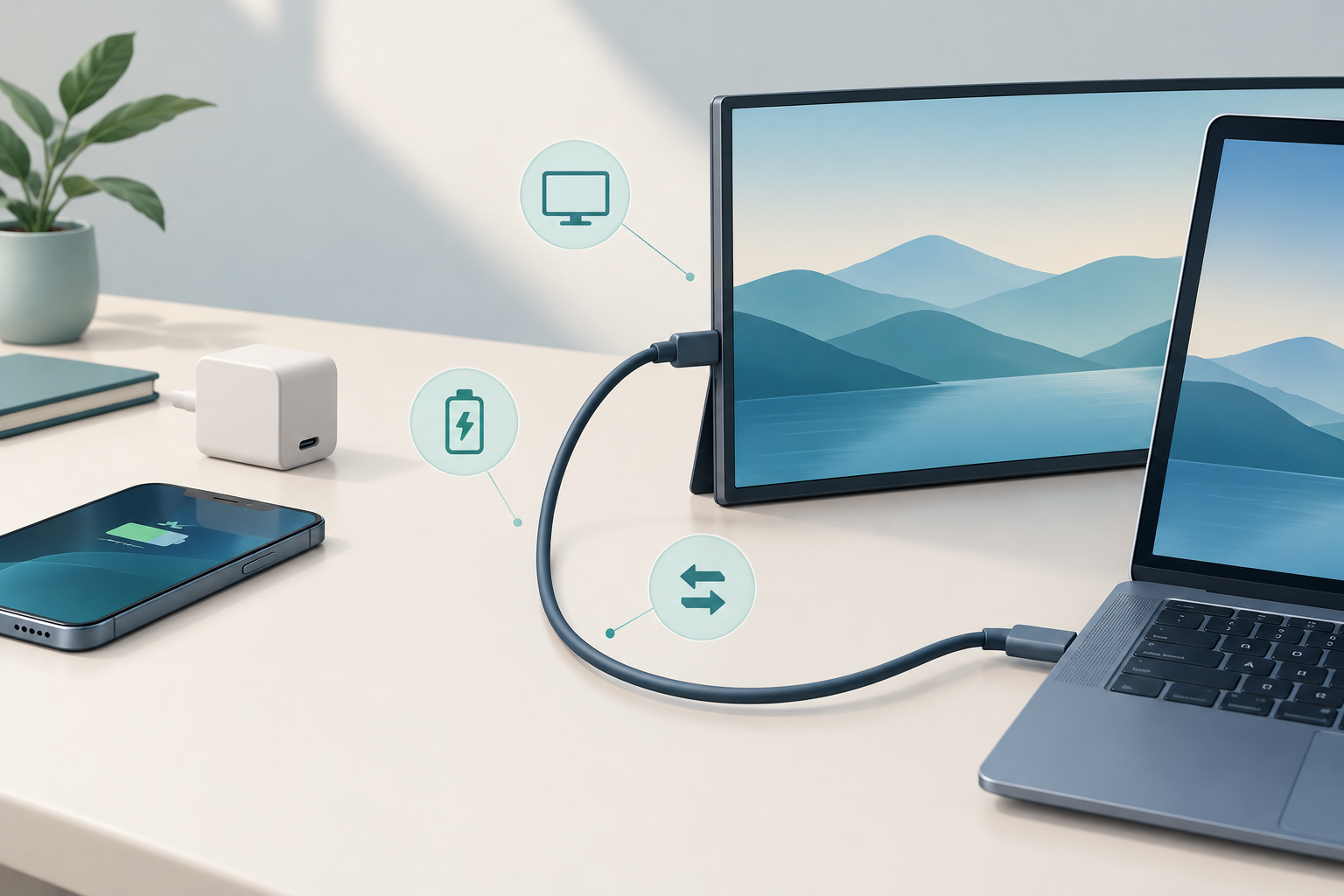
A USB-C plug does not guarantee what the connection can do
Check the capabilities of the full connection—not just whether the plugs fit.
A USB-C cable may charge a device but fail to send video, or transfer files at a different rate than another cable with the same plug shape. The connector tells you how the cable attaches; it does not, by itself, tell you which functions or performance levels the cable supports.
To check whether a USB-C connection will work, identify the task, then verify three parts: the port on your phone or computer, the cable, and the device at the other end, such as a monitor, charger, dock, or second computer. A single unsupported link can limit or prevent the result you want.
Start by naming the task
The right cable depends on whether you need display output, power, file transfer, or several functions at once.
Before searching a product listing or troubleshooting, be specific about the job. “I need a USB-C cable” is less useful than “I need to connect this laptop to this monitor,” “I need to charge this phone at its supported faster rate,” or “I need to move large files between these two computers.”
Some setups need more than one capability. A dock connected to a laptop might carry data, video, and power through one cable. In that case, check each function separately. A cable suitable for charging alone may not be suitable for the dock’s display or data needs.
- Video: confirm that the source device can send video over its USB-C port and that the monitor or adapter accepts the relevant input.
- Charging: check the power needs and supported charging method of the device, plus the charger and cable ratings.
- Data: check the transfer capabilities stated for both devices and the cable; the slowest relevant part can constrain the connection.
| Task | Check on the source device | Check on the cable and other endpoint |
|---|---|---|
| Video to a monitor | The device documentation must state support for USB-C video output, such as DisplayPort Alt Mode where applicable. | Confirm the cable supports the required video function and the monitor, adapter, or dock accepts the signal. |
| Charging | Check the device’s supported charging method and power needs. | Check charger output and cable power capability; all parts must work together. |
| File transfer | Check the ports and supported data functions on both devices. | Check the cable’s stated data capability and any dock or adapter between the devices. |
Check the USB-C port on each device
A port can look like USB-C while offering a different set of features from another port on the same device.
Find the exact model name or number for your laptop, phone, tablet, monitor, or dock, then consult its manual or manufacturer support page. Look for details about USB-C video output, DisplayPort Alt Mode, supported charging input or output, and data capabilities. Do not assume that every USB-C port on one device has identical features; manufacturers may document differences between ports.
For video, VESA advises checking device documentation for DisplayPort Alt Mode support. If the source device does not support video output through that port, plugging it into a monitor with a USB-C cable will not make the port send a display signal. A USB-C-shaped port alone is not evidence of video support.
For a laptop or phone connected to a monitor, check both sides of the link: the source’s video output and the monitor’s supported input. If a dock or adapter is involved, check its own specifications too. A setup can fail even when the cable is suitable if the source port, adapter, or display does not support the required connection.
Read the cable’s specifications, not its appearance
Use packaging or a trustworthy product specification to identify the cable’s stated data and power capabilities.
Look for explicit information about data rate and power capability in the cable’s packaging, label, or product listing. These are separate attributes: a cable’s stated power capacity does not establish its data performance, and a data specification does not by itself tell you whether the rest of your setup supports fast charging. USB-IF guidance distinguishes cable capabilities, including power and data rate, so treat them as separate checks.
USB-IF’s product search can help identify products certified to bear USB-IF logos. A certification mark can be useful evidence, but the search covers products certified to bear those marks; do not treat the absence of a visible logo as proof that a cable cannot perform a particular function. Check the product documentation and compatibility with your devices as well.
Be wary of vague descriptions such as “high speed” or “fast charge” when they do not specify the relevant capability. If a listing does not clearly state what you need, look up the exact cable model or choose a product whose manufacturer documents the data and power specifications. Avoid inferring a particular speed, display resolution, or wattage from the cable’s thickness, color, or plug shape.
Check the charger, monitor, dock, and other endpoint
The cable is only one part of the connection; verify what the connected device can provide or accept.
For charging, compare the device’s charging requirements with the charger’s output and the cable’s documented power capability. A high-capacity charger cannot make every phone charge at its maximum rate, and a compatible cable cannot compensate for a charger or device that does not support the same charging method.
Apple’s guidance for faster wired charging on iPhone 15 and later provides a specific example: it recommends a USB-C Power Delivery charger and a USB-C cable. That advice applies to the stated iPhone models and should not be read as a universal requirement or guarantee for other devices. For your own phone or laptop, use its manufacturer’s instructions to check the supported charger and cable combination.
For video, a monitor may accept USB-C video directly, or you may need an adapter or dock with a compatible input and output. Check the adapter’s documented functions, not only the connectors on its ends. For data transfer, check the receiving device and any hub or dock in the path; they may affect whether the intended transfer works.
Troubleshoot by changing one part at a time
A failed connection can have several causes, so isolate the components before buying a replacement.
If the display stays blank, charging is slower than expected, or a file transfer fails, the cable is only one possible cause. The port, adapter or dock, settings, connected device, or chosen function may be involved. Use a controlled test where possible rather than replacing several parts at once.
A methodical test sequence
First, reseat the connections and confirm you have selected the correct monitor input or device mode. Then bypass the dock or adapter and connect directly if the equipment supports it. Try a cable whose specifications are known to match the task, and test a different compatible port or endpoint if available. Change one element per test and note what changes.
If a known-compatible direct setup still fails, check the device manufacturer’s troubleshooting guidance and relevant settings. Avoid concluding that the cable is defective solely because one configuration did not work: the source port, display input, charger, or adapter may be the limiting component.
- Write down the exact device models and the task you want to perform.
- Check the source port and other endpoint’s manuals for that feature.
- Read the cable’s stated data and power specifications; check the adapter or dock if used.
- Test a direct connection and one known-compatible cable, changing only one component at a time.
- Buy a replacement only after you know which documented capability the current setup lacks.
Use a short buying checklist
A few checks before checkout can prevent buying a cable that fits but does not meet the task’s requirements.
Choose a cable based on the documented needs of your specific devices, not a generic promise that it works with USB-C. If you want one cable to charge a laptop, connect a monitor, and transfer data through a dock, confirm those separate requirements are all covered. When a product listing is unclear, consult the manufacturer’s specifications or select a clearly documented alternative.
After connecting the new cable, verify the result directly: confirm that the monitor displays the expected output, the device reports charging, or the file transfer completes. Successful charging alone does not prove that video or fast data works. Keep the cable details or packaging so you can identify its capabilities later.
- Task identified: video, charging, data, or a combination.
- Source and destination ports checked against their exact model documentation.
- Cable data and power specifications checked separately.
- Charger, monitor, dock, or adapter checked for the required input and output.
- No performance level assumed from the connector shape or cable appearance.
Frequently asked questions
Can every USB-C cable connect a laptop to a monitor?
No. The source device’s USB-C port must support video output, the cable must support the relevant function, and the monitor or any adapter must accept the signal. Check the device documentation for video support, including DisplayPort Alt Mode where applicable.
Does a USB-C cable with a higher power rating transfer data faster?
Not necessarily. Power capability and data rate are separate cable specifications. Check both if you need charging and file transfer, and verify that the connected devices support the capabilities you want.
Will a more powerful USB-C charger make my phone charge faster?
Not by itself. Charging speed depends on the phone, charger, cable, and supported charging method. Check your device maker’s guidance; recommendations for one model or brand may not apply to another.
Does the lack of a USB-IF logo mean my cable cannot work?
No. USB-IF’s product search is for products certified to bear its logos, so not seeing a mark alone does not establish that a cable lacks a capability. Check the cable’s specifications and whether they match your devices and task.
Why does my USB-C cable charge but not show video?
Charging and video are different functions. The source port may not support video output, the cable may not support the required function, or an adapter or display may be incompatible. Check each component’s documentation and test a direct connection if possible.
Sources & further reading
Explore the original sources behind this article. Our editorial perspective is separate from the organizations we reference.
- [S1] Cables and Connectors | USB-IFusb.org
- [S2] FAQ - DisplayPortdisplayport.org
- [S3] About iPhone charge speeds - Apple Supportsupport.apple.com
- [S4] Product Search | USB-IFusb.org