Before You Buy a Google Pixel Tag: Check Your Android Phone’s Compatibility
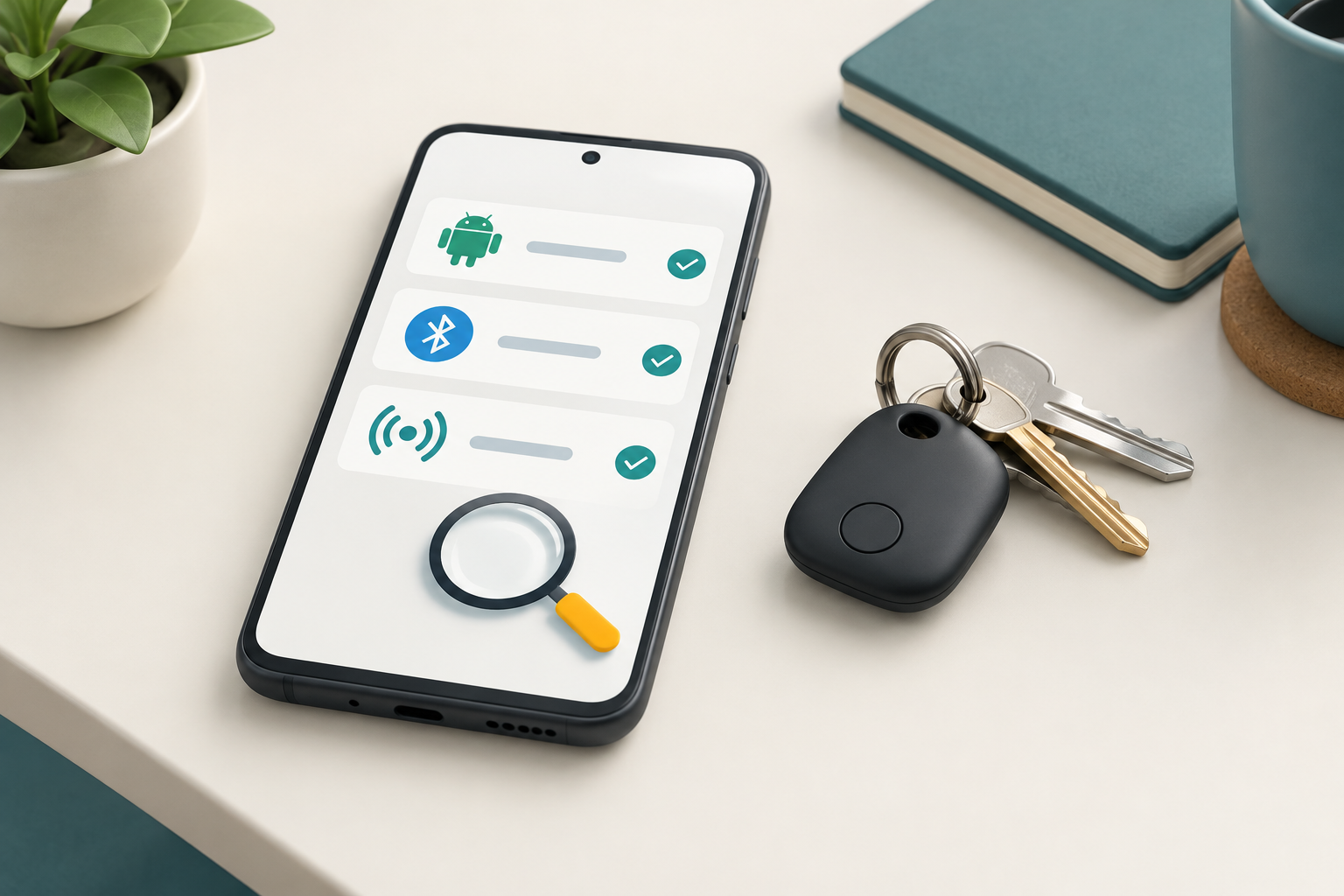
Android 9 or later is the baseline for Pixel Tag compatibility, but precision-finding features need additional hardware. Check your phone’s software, Bluetooth and UWB support, and Find Hub access before buying.
Pixel Tag compatibility depends on the feature you want
A phone may meet the baseline for connecting the tag without supporting its more precise finding options.
If your Android phone runs Android 9 or later, it meets Google’s stated baseline for Pixel Tag compatibility. But that alone does not tell you whether Bluetooth Channel Sounding or UWB Precision Finding will work. Those features have additional software and hardware requirements.
Google announced the Pixel Tag on November 10, 2026, and said it would be available starting November 11. Its specifications distinguish the Android version needed for basic compatibility from the requirements for specific finding features. Treat the launch timing as an announcement, not a guarantee that a tag or every feature is available in every location or through every retailer.
- For basic compatibility, check whether the phone runs Android 9 or later.
- For Bluetooth Channel Sounding, check both the Android version and Bluetooth hardware.
- For UWB Precision Finding, verify that the exact phone model includes UWB.
Check your Android version and Find Hub access
Start with the software basics, then confirm that you can reach the app Google uses to manage the tag.
Find your Android version in your phone’s Settings. The exact menu names vary by manufacturer, but look for About phone or About device, then Android version or Software information. If the phone is below Android 9, it does not meet Google’s listed baseline. If it is Android 9 or later, continue checking rather than assuming every feature is supported.
Next, look for the Find Hub app or check whether you can install it from your phone’s app store. Google’s setup instructions use Fast Pair to connect the Pixel Tag and Find Hub to manage it. If the app is unavailable, cannot be updated, or does not offer the expected setup on your device, resolve that before relying on the tag. App availability and menus can vary by device, account settings, and region, so check what your own phone shows.
- Write down the phone’s exact model name, not just its brand or product family.
- Check the Android version in Settings; menu wording may differ.
- Confirm Find Hub is available and opens on your phone.
Match the finding feature to your phone’s requirements
Use the specifications for each feature as a separate checklist rather than treating Android version as a proxy for hardware.
Google lists different requirements for Bluetooth Channel Sounding and UWB Precision Finding. A recent operating-system version does not prove that the phone contains the relevant radio hardware, and having compatible hardware does not necessarily mean the feature is enabled or available on every setup.
For Bluetooth Channel Sounding, Google specifies a compatible device running Android 16 or later with Bluetooth 6.0. That means all three checks matter: compatible device, supported Android version, and Bluetooth 6.0. For UWB Precision Finding, Google specifies a compatible Android device with UWB. The listed requirement does not mean every Android phone has that component.
- Android 9 or later: baseline Pixel Tag compatibility.
- Android 16 or later plus Bluetooth 6.0 on a compatible device: requirement for Bluetooth Channel Sounding.
- Compatible Android phone with UWB: requirement for UWB Precision Finding.
| What you want to use | Google’s stated requirement | What to verify |
|---|---|---|
| Basic Pixel Tag compatibility | Android 9 or later | Your phone’s Android version and ability to use Find Hub setup |
| Bluetooth Channel Sounding | Compatible device, Android 16 or later, and Bluetooth 6.0 | All three requirements for your exact phone model |
| UWB Precision Finding | Compatible Android device with UWB | Whether your exact phone model includes UWB and supports the feature |
Verify your exact phone model before buying
A model-level check can prevent confusion between phones that share a name but differ in hardware or regional configurations.
Look up the full model number in your phone’s Settings, on its original packaging, or in its manufacturer’s support information. Then compare that exact model with Google’s Pixel Tag specifications and the phone maker’s specifications. Search for Bluetooth 6.0 or UWB specifically; a general statement that a phone supports Bluetooth is not enough to confirm either requirement.
If a manufacturer lists different versions by country or carrier, check the version you own or plan to buy. If the specification is unclear, ask the phone manufacturer or Google support about that model rather than inferring support from a similar model or a family name. This matters most if a particular precision feature is the reason you are considering the tag.
For example, a phone that runs Android 15 and supports the Android 9 baseline may still be a reasonable candidate for basic setup, but it does not meet the stated Android 16 requirement for Bluetooth Channel Sounding. A phone running Android 16 still needs compatible Bluetooth 6.0 hardware for that feature.
- Check the complete model number and, if relevant, the region-specific version.
- Find an explicit UWB listing if you want UWB Precision Finding.
- For Channel Sounding, verify Android 16 or later and Bluetooth 6.0, not just one of those requirements.
Set up Pixel Tag with Fast Pair and Find Hub
Google’s documented setup uses Fast Pair to connect the tag and Find Hub to manage it.
Once you have the tag, follow Google’s current setup instructions on the phone you plan to use. Keep the phone and tag together, follow the Fast Pair prompts, and complete the connection in Find Hub. The app is where you can manage the tag and see which finding options are available on your device.
Give the tag a clear name or category that will make sense later, such as “house keys” or “work bag,” if those options appear during setup. Naming conventions are practical advice, not a special compatibility requirement. If the Fast Pair prompt does not appear or setup stalls, check that the phone meets the baseline, Find Hub is available and updated, and the phone’s Bluetooth is on; then follow the troubleshooting guidance for your device.
- Use the phone you intend to carry when looking for the item.
- Complete the Fast Pair prompts and check that the tag appears in Find Hub.
- Review the options Find Hub actually displays rather than assuming a feature is available.
- Update the phone if an Android update is available and appropriate for your device.
- Open Find Hub and follow Google’s Pixel Tag connection instructions.
- Complete the Fast Pair prompts and confirm the tag is listed in Find Hub.
- Give it a recognizable name or category if offered.
- Open the finding controls and note which options are available on this phone.
Test it before attaching it to something important
A quick trial helps reveal what your particular phone and setup can do in ordinary conditions.
Before putting the tag on keys, luggage, or another item you depend on, try locating it nearby using the options shown in Find Hub. Check that the app can connect to the tag and that you understand the prompts and status information. If your phone offers a precision-finding option, test how it behaves in a familiar setting and learn what the on-screen directions mean.
Do not treat one successful nearby test as a promise that you can find the item in every situation. A tracker does not guarantee recovery. Finding performance and available options can depend on supported phone hardware, software, settings, surroundings, and the circumstances in which the item is missing. If your phone supports only basic compatibility, make your purchase decision on that basis rather than expecting a precision feature.
- Test the tag in the same app you will use later.
- Confirm which finding controls appear on your phone.
- Keep an alternate plan for items whose loss would cause significant trouble.
Your pre-purchase checklist
Make the decision using the feature you actually need, not the most advanced feature named in a product description.
Before paying, confirm the Android version, the exact phone model, Find Hub access, and the hardware requirements for any precision feature you specifically want. If a key specification is missing or ambiguous, wait for confirmation from Google or the phone manufacturer instead of assuming compatibility.
After purchase, set up the tag with Fast Pair, check it in Find Hub, and perform a nearby test. Revisit Google’s current specifications and setup help if the app or available options differ from what you expected; availability and software can change over time.
- Android 9 or later for the stated baseline.
- Android 16 or later and Bluetooth 6.0 on a compatible phone for Bluetooth Channel Sounding.
- UWB hardware on a compatible Android phone for UWB Precision Finding.
- Find Hub available and setup completed through Fast Pair.
- A test locating session completed before relying on the tag.
Frequently asked questions
Will a Google Pixel Tag work with any Android phone?
Google lists Android 9 or later as the baseline for compatibility, but not every Android phone supports every finding feature. Check Find Hub access and your exact phone model’s hardware before buying.
Does Android 16 mean my phone supports Bluetooth Channel Sounding?
Not by itself. Google’s stated requirement also includes a compatible device and Bluetooth 6.0. Check the specifications for your exact phone model.
Does my Android phone need UWB for Pixel Tag setup?
UWB is specified for UWB Precision Finding, not as the general Android-version baseline for basic compatibility. Check Google’s current feature specifications to see which options your phone can use.
How do I connect a Pixel Tag to my phone?
Google’s instructions use Fast Pair to connect the tag and Find Hub to manage it. Follow the current prompts on your phone, then confirm that the tag appears in Find Hub.
Can I rely on a Pixel Tag to recover lost keys or a bag?
No tracker can guarantee that an item will be recovered. Test the tag and understand the options your phone supports, but keep another plan for belongings that are especially important.
Sources & further reading
Explore the original sources behind this article. Our editorial perspective is separate from the organizations we reference.