How to Review App Permissions on iPhone and Android Without Breaking Useful Features
Check location, photos, contacts, camera, and microphone access one category at a time. Choose settings that fit the features you use, then test the app.
What app permissions show—and what they do not
Permissions help you check device access, but they are only one part of understanding an app’s privacy practices.
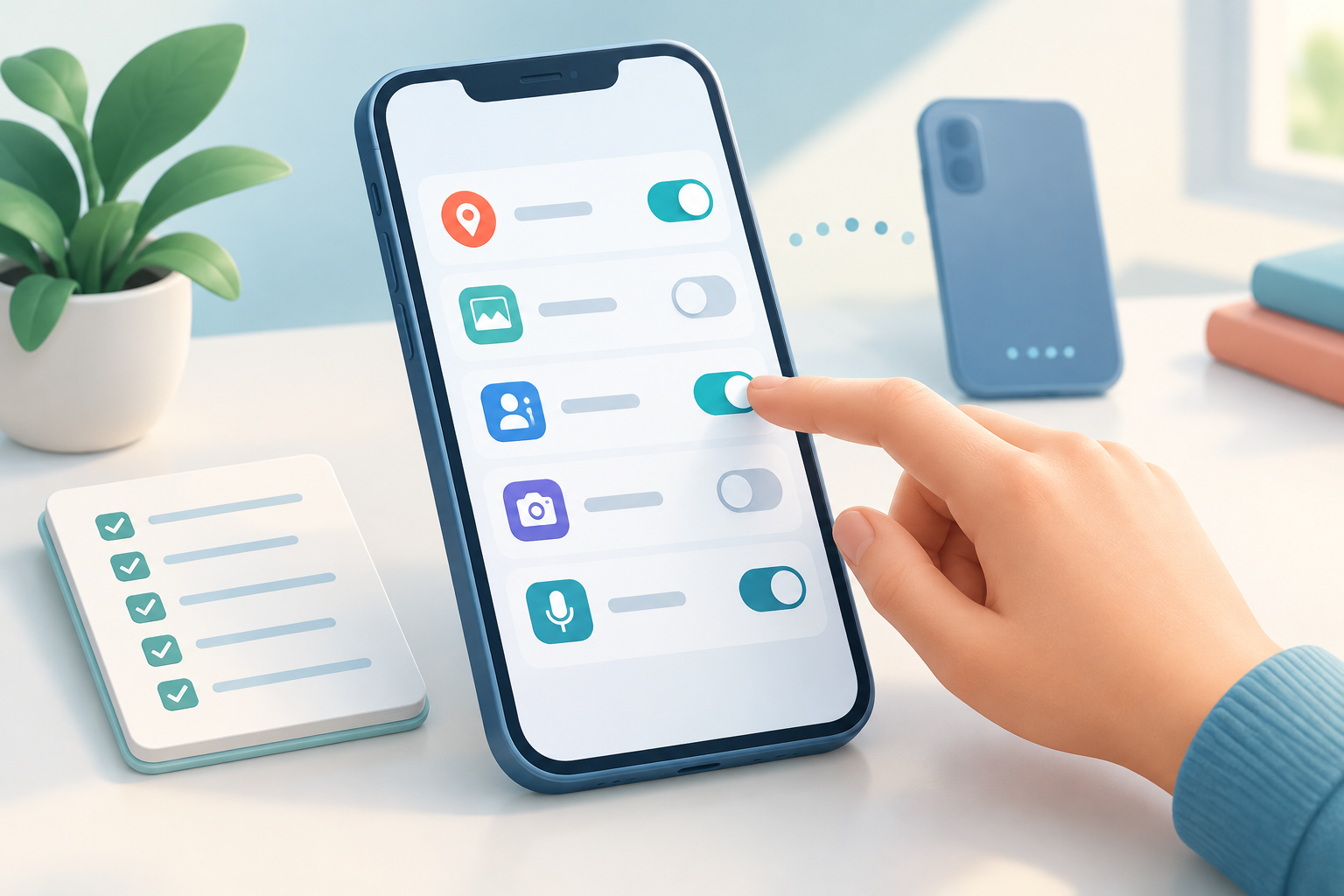
To review app permissions, open your phone’s privacy or app settings and check access category by category. Look at location, photos, contacts, camera, and microphone. For each app, ask whether it still needs that access for a feature you use. If a less permissive option will work, consider choosing it and then test the feature.
A permission can answer questions such as whether an app can use your camera or access your location. It does not, by itself, explain all the information an app may collect, what it sends to its service, or how long information is retained. For that context, check the app’s privacy information too.
The aim is not to deny every request. A navigation app may need location for directions; a video-calling app may need camera and microphone access during calls. The useful question is whether the access makes sense for a feature you choose to use.
Start with the permissions that matter to you
Use each category to connect an app’s access to a specific task, rather than applying one rule to every app.
You can review one category at a time, which makes it easier to notice access that no longer fits an app’s role. The questions below are prompts, not universal rules: work, accessibility, safety, and personal routines can make an app’s needs different from those of another app.
| Permission | Ask yourself | A less-permissive option to consider |
|---|---|---|
| Location | Does this feature need my location all the time, only while I use the app, or not at all? | Consider access only while using the app, if that supports the feature. |
| Photos | Does the app need a whole library, or just pictures I choose? | Look for selected-photo access or a picker, if available on your phone. |
| Contacts | Do I use a feature that finds or invites people from my address book? | Turn access off if you do not use that feature; manual entry may be an alternative. |
| Camera | Do I take photos, scan documents, or make video calls in this app? | Allow access when you use the feature, then review it again if the app’s role changes. |
| Microphone | Do I record audio, use voice features, or make calls in this app? | If unsure, try denying access and test the specific feature you want to use. |
How to review app permissions on iPhone
Use Privacy & Security to inspect access by category, then adjust individual apps where a narrower setting fits.
Open Settings, then Privacy & Security. Choose a category such as Location Services, Camera, Microphone, Contacts, or Photos to see which apps have requested access and what controls are available. The options differ by category and software version. Apple documents these controls for reviewing app access to information and device features.
For location, consider whether an app needs access only while you use it. Where available, Precise Location can be turned off to give an app a less exact location. That may affect a map, delivery, or other location-based feature, so test the task you rely on rather than assuming it will work the same way.
For photos, check whether your phone offers a way to give access only to selected pictures. For camera, microphone, and contacts, consider whether you use an app feature that depends on access—for example, scanning a receipt, making a call, or finding people to invite.
You can also open an app’s entry in Settings to review its controls. If a menu path differs on your iPhone, use Settings search and look for the app or permission name.
How to review app permissions on Android
Android provides app-by-app controls and, on supported devices, a Permission manager for reviewing access by category.
To check one app, open Settings, find Apps, select the app, and choose Permissions. To compare access across apps, search Settings for Permission manager or the permission category, such as Location or Camera. Menu names and locations vary by Android version and phone maker, so Settings search is a practical fallback.
Depending on the permission and device, available choices can include allowing access only while using the app or asking every time. Google Play Help describes changing permissions for an individual app and reviewing permissions by type; it also notes that options vary. Choose from the controls actually shown on your phone.
For example, if you use a location feature only while an app is open, a while-using option may be enough. If you are unsure whether a camera or microphone permission is needed, try turning it off and test the task you care about. Restore access if the feature requires it and you are comfortable granting it.
Change one permission at a time, then test the app
A specific feature to test makes it easier to see whether a permission change has the effect you expected.
Before changing a setting, name the task you want to preserve. “I use this app to scan receipts” gives you a clearer test than “this app needs my camera.” Make one change, try the relevant task, and decide whether the resulting trade-off works for you.
- Choose one permission category, such as location or microphone, and review the apps listed.
- For each app, identify the feature that might need access. If no feature comes to mind, check whether a more limited option is available.
- Change one app’s setting. Avoid changing several permissions at once so you can identify what affected the feature.
- Open the app and try the related task: choose a picture, make a call, scan a document, or use a location-based feature.
- If the task does not work and you still want to use it, return to settings and choose an access level that supports it. If the feature is unimportant to you, you may prefer to keep access limited.
Use privacy reports as a review aid
A report can provide extra context about activity on your phone, but it is not a complete account of an app’s data practices.
On iPhone, App Privacy Report can show how apps use permissions you have granted and their network activity. It can help you notice activity worth investigating, but it does not describe every aspect of an app’s data practices or determine whether its behavior is appropriate. Apple presents the report as a way to review app access and activity on the device.
If a report raises a question, compare what you see with the feature you used and the app’s privacy information. An app using a permission is not automatically evidence of misuse: it may have used it for a task you requested. Likewise, a permissions screen does not explain everything an app may handle.
Android privacy menus and reporting features can differ across devices and versions. Use the information available on your phone, and consult the app provider’s privacy details when you want to understand collection and use practices beyond device permissions.
Make the review useful over time
Revisit access when an app or your routine changes, and keep the process small enough to repeat.
A permission that made sense when you installed an app may not fit how you use it now. Recheck access when you stop using a feature, change an app’s role, or are unsure why it has a particular permission. You can review one category at a time instead of trying to assess every setting in one session.
If you change a setting and a feature stops working, note which permission you adjusted and what restored the feature. That simple record can help you make a deliberate choice later rather than repeatedly changing settings without knowing why.
For a practical next step, open Settings and choose one category—location is a straightforward place to begin. Review the listed apps, make a change only if it fits your needs, and test the related task. Then continue with photos, contacts, camera, or microphone when convenient.
Frequently asked questions
Where can I see which apps have location access?
On iPhone, open Settings, then Privacy & Security, and choose Location Services. On Android, search Settings for Permission manager or Location; the menu path varies by device and version.
Should I deny every app access to my camera and microphone?
No. Denying access can prevent features such as video calls, recording, scanning, or voice input from working. Allow access when it supports a feature you choose to use, and test the feature after changing a setting.
Can I let an app use only some of my photos?
Some phones and software versions offer selected-photo access or a photo picker. Check the Photos permission options on your device; available controls vary.
Does a permission screen tell me everything an app collects?
No. It shows or controls access to certain device features and information categories. Check the app’s privacy information for more context about its data practices.
What if I cannot find Permission manager on Android?
Search Settings for Permission manager, Permissions, or the specific category, such as camera or contacts. Names and paths differ across Android versions and phone makers.
Sources & further reading
Explore the original sources behind this article. Our editorial perspective is separate from the organizations we reference.